Award Cash Management Service (ACM$)
The Award Cash Management $ervice (ACM$) is NSF’s approach to award payments and post-award financial processes. This approach requires the submission of award level payment amounts each time funds are requested.
The Division of Information Systems (DIS) has teamed with LearnNSF to develop Research.gov/Desktop training for NSF staff. ACM$ is available to NSF staff via the Desktop. Three courses have been developed, including:
· Course One: Identify the Tool or Service on Research.gov/Desktop
· Course Two: Accomplishing Tasks Using the Research.gov/Desktop
· Course Three: Award Cash Management $ervice
Please go to the LearnNSF website to learn more.
What do the FAS transaction codes stand for?
FAS Transaction Code |
Description |
354 |
COMMITMENT OF A PROPOSAL |
451 |
DEOBLIGATION OF CURRENT FISCAL YEAR OBLIGATION |
452 |
OBLIGATION OF CURRENT FISCAL YEAR OBLIGATION |
453 |
DEOBLIGATION OF PRIOR FISCAL YEAR OBLIGATION |
456 |
OBLIGATION FOR PI TRANSFER |
600 |
FFR EXPENDITURE |
608 |
PAYMENT/EXPENDITURE |
615 |
AWARD CLOSE |
616 |
UPWARD ADJUSTMENT AFTER A 615 |
617 |
DOWNWARD ADJUSTMENT AFTER A 615 |
618 |
REOPEN AWARD REVERSAL OF A 615 |
680 |
ACM$ PAYMENT/EXPENDITURE |
685 |
ACM$ AWARD CLOSE |
686 |
UPWARD ADJUSTMENT AFTER A 685 |
687 |
DOWNWARD ADJUSTMENT AFTER A 685 |
688 |
REOPEN AWARD REVERSAL OF A 685 |
800 |
CASH POOLING PAYMENT |
880 |
ACCOUNT RECEIVABLE |
918 |
REMITTANCE |
986 |
ACM$ REJECTED PAYMENT |
987 |
REPAYMENT OF AN ACM$ REJECTED PAYMENT |
988 |
REVERSAL OF AN ACCOUNT RECEIVABLE |
As NSF staff, you can access ACM$ by completing the following steps:
- From the Research.gov homepage, click on Log In (located in the upper right-hand corner of the site)
- You will be redirected to a page where you will enter your last name, NSF ID, and password and click Login.
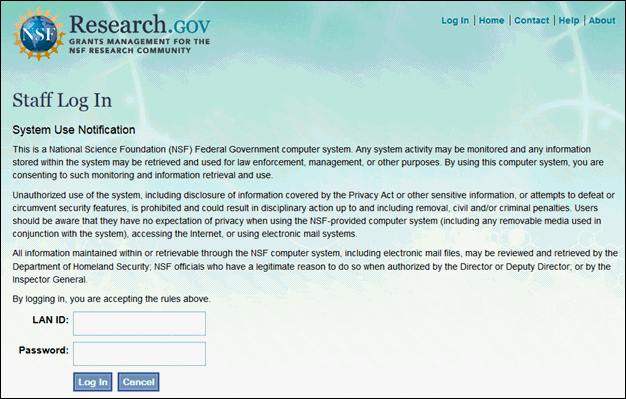
Figure 1 - Staff Log In Page
3. Once you are logged on, select the “Award Cash Management $ervice” link located under the NSF Staff Services menu in the top navigation.
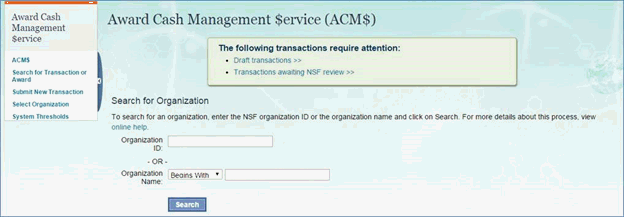
Figure 2 - Award Cash Management $ervice (ACM$) Main Page
You will now be able to search for organizations, search for transactions or awards, or select “System Thresholds” from the left menu.
How Do I Search for Payment Transactions or Awards?
You can search for transactions or awards by completing the following steps:
1. Click on the “Search for Transaction or Award” link on the left menu or by the ACM$ homepage.
2. Enter the Transaction ID, Disbursement Number or Federal Award ID.
3. Click the “Search” button
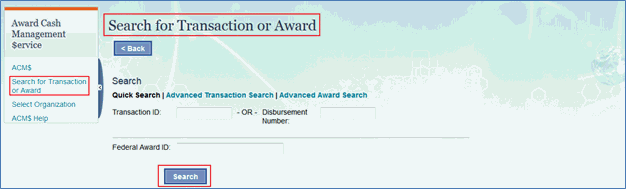
Figure 3 - Search for Transaction or Award Screen
At any time, you can click on the “Advanced Transaction Search” link or “Advanced Award Search” link to perform an advanced search on additional fields.
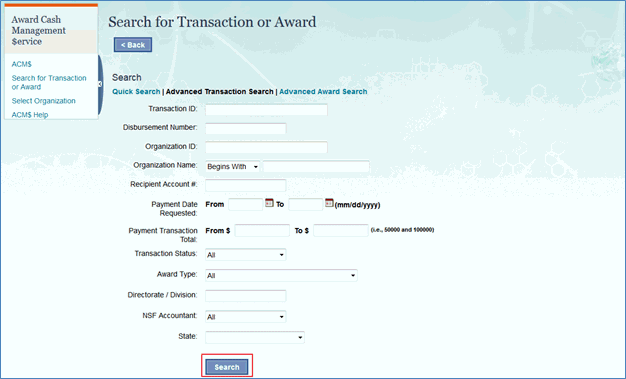
Figure 4 - Advanced Transaction Search Screen
An advanced transaction or award search will require additional information about the transaction or award. To conduct an advanced search, complete the following steps:
1. Fill out at least one search field.
2. Click the “Search” button.
Below is an example of advanced search results for an award or transaction.
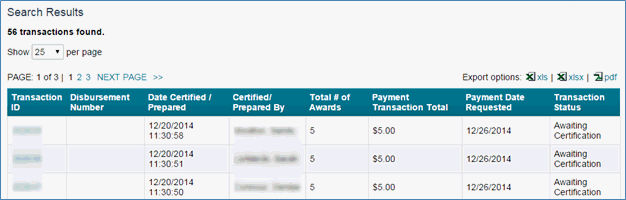
Figure 5 - Transaction Results Screen
You can sort the results by selecting a heading from the search results. Also, you can export the search results by clicking the XLS, XLSX or PDF.
How Do I Search for Organizations?
You can search for an organization by clicking the “Select Organization” link on the left menu.
To search for an organization, complete the following steps:
1. Enter an organization ID or organization name. If searching by organization name, select whether the name “Begins With,” “Contains” or “Ends With” the search criteria.
2. Click the “Search” button.
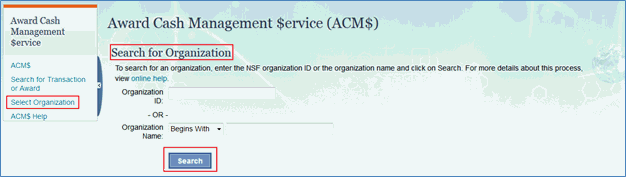
Figure 6 - Search for Organization Section
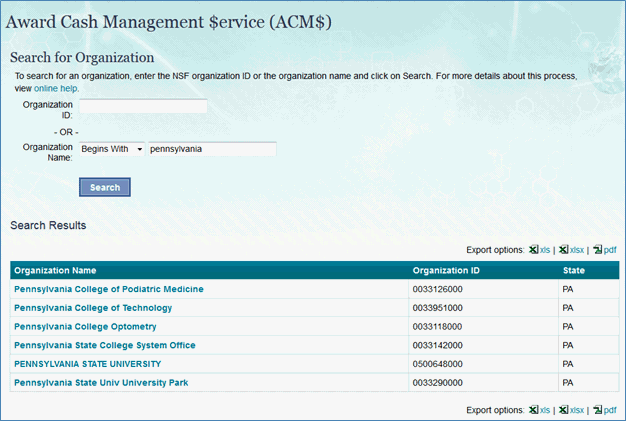
Figure 7 - ACM$ Search Results screen
The search results will appear and you can sort your search by clicking on any of the column headers: Organization Name, Organization, ID or State.
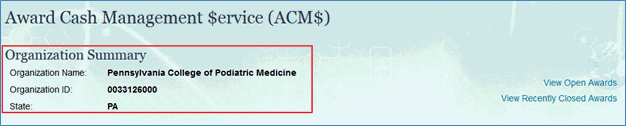
Figure 8 - ACM$ Organization Summary Screen
By clicking the name of an organization, you will see the Organization Summary screen shown above.
In the left hand navigation of the screen above, you can view transactions that are in the following states: Draft, Awaiting Certification, Awaiting NSF Review, and Received. You can also select Historical Transactions to view those transactions which are in all states, including Accepted.
To view Award details, complete the following steps:
1. Search for an award via the ACM$ homepage quick search or through advanced award search, and you will be provided with a results screen. You can also click on an award ID from the Payments tab of a payment transaction.
2. Select
the hyperlinked number under the Federal Award ID column for the award
you wish to view.

Figure 9 - Search Results screen
3. You will now be on an Award Details page. If you would like to see the award abstract, select the hyperlinked Federal Awards ID number.
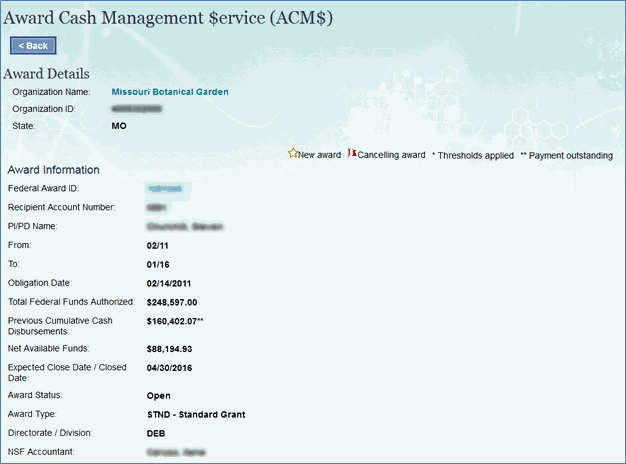
Figure 10 - Award Details screen
Note: If you search for an award, you can see the award details by clicking the Federal Awards ID. If you search for a transaction you must first select the transaction ID to view the transaction and then select the Federal Awards ID from within the transaction.
How Do I View Amendment/Split Details?
To view amendments and splits from an award, click on the “View Amendments & Splits” link on the Award Details page.

Figure 11 - Award Amendments & Splits
Next you will see the Award Amendments & Splits page. From this page, click “Show” to see more information.
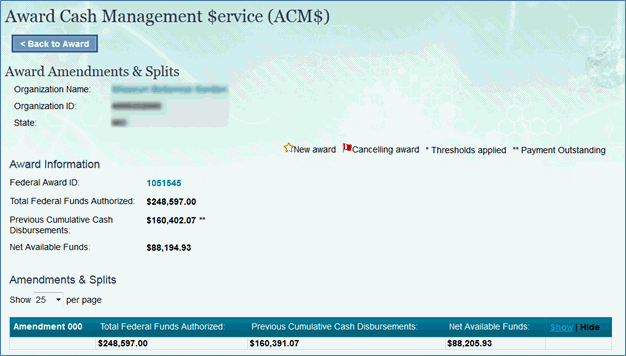
Figure 12 - Award Amendments & Splits
From the Amendments & Splits page you can see many details on the award amendment. You can also sort your details by clicking the column headers.
Note: The left-hand side menu is collapsible by clicking on the blue arrow.
How Do I View Payment Transaction Details?
To view payment transaction details, complete the following steps:
1. Search for a transaction through quick or advanced searches or select a transaction from the lists of Draft Transactions, Awaiting NSF Review or Historical Transactions.
2. Click on the transaction ID number for the specified award. You will then see the Transaction Details page.
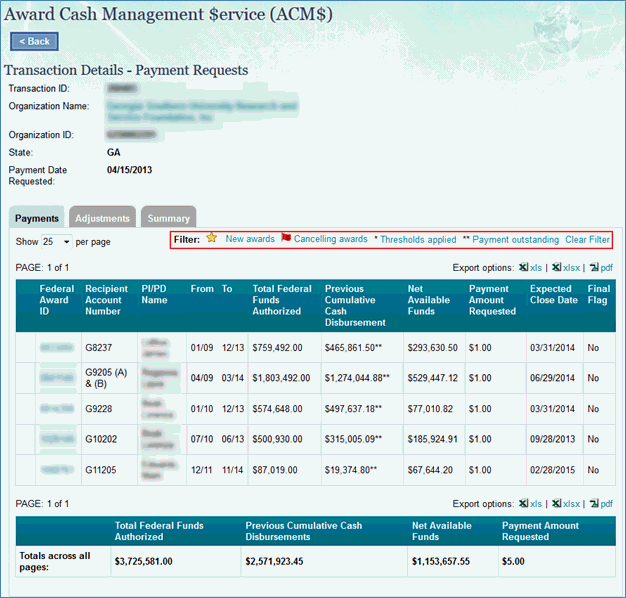
Figure 13 - Transaction Detail screen
This page is divided into three tabs: Payments, Adjustments and Summary. The image above shows the Payments tab. On this page you can sort the results by clicking on any of the column titles. You can filter the results by selecting the “New Awards,” “Cancelling awards,” “Thresholds Applied” or “Payments Outstanding” filters above the top of the list of payments requests.
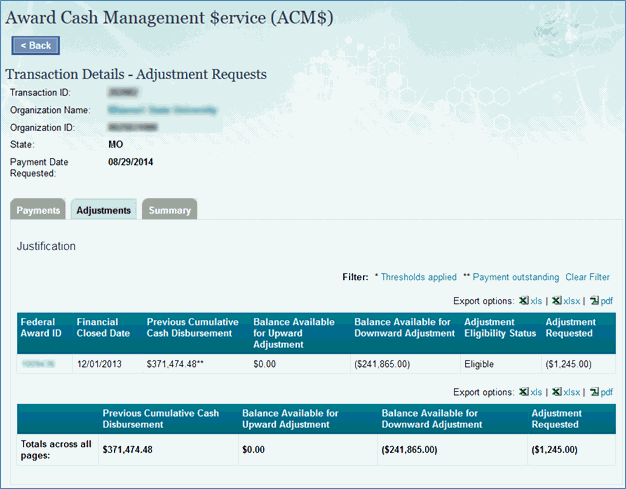
Figure 14 - Transaction Adjustment Request
The image above shows the Adjustments tab. On this page you can sort the results by clicking on any of the column titles. You can filter the results by selecting the “Thresholds applied” or “Payments Outstanding” filters above the list of adjustment requests.
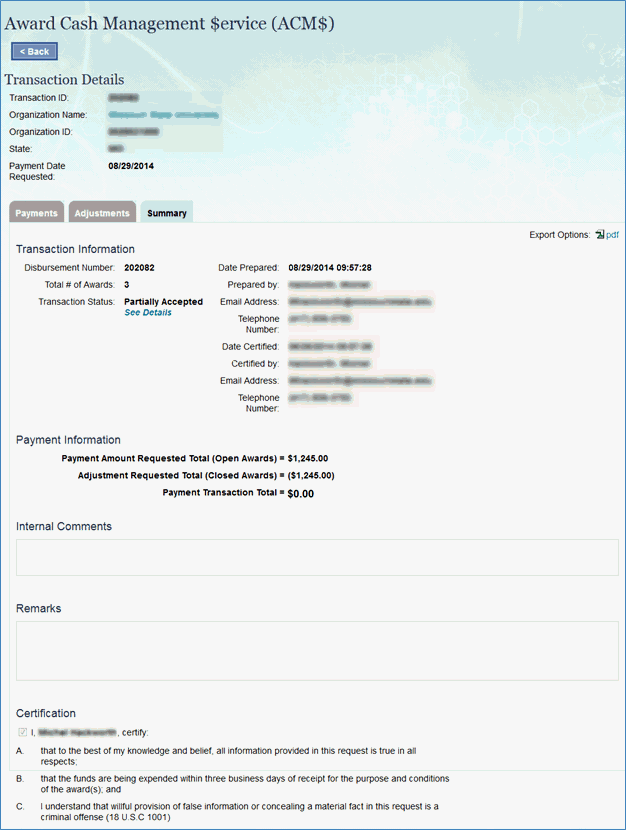
Figure 15 - Transaction Summary
The image above shows the Summary tab. On this page you can review transaction and payment information as well as any internal comments, remarks and certification available for review.
How Do I View Threshold Information?
To view organization, award, and system level thresholds:
1. Search for and select an Organization.
2. On the organization homepage, select All Open Awards and search for a specific Award ID or select an Award ID from a specific transaction.
3. Select the Award ID for the award you wish to view. The Award Details page will be displayed.
4. On the Award Details page, scroll down to view all thresholds at the award, organization or system level as well as the logs for each type of threshold.
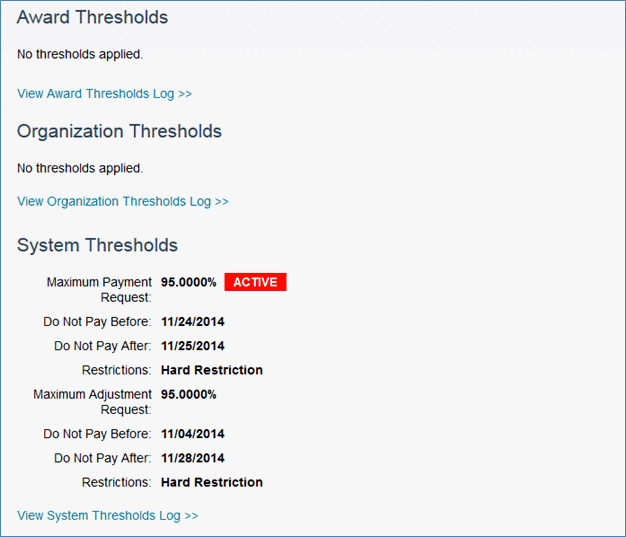
Figure 16 - Award, Organization and System Thresholds
How Do I Access ACM$ as DFM Staff?
As DFM staff, you can access ACM$ by logging into Research.gov/Desktop with your NSF user ID and password. You must be assigned permission to use ACM$ as an NSF Accountant or Certifier.

Figure 17 - Research.gov Main page
Once you are logged on, select the “Award Cash Management $ervice” link located under the Staff Services menu in the top navigation.
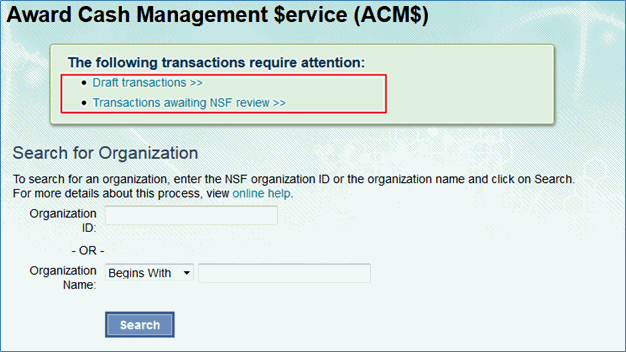
Figure 18 - Award Cash Management $ervice Main Page
Once you have logged in, you will be able to preview transactions that are either in draft form or in review. You will also be able to search for an organization, transaction or award.
How Do I Create a Payment Transaction?
To create a draft payment transaction:
1. Login as an NSF Accountant.
2. On the ACM$ homepage, either:
a. Select the “Submit New Transaction” link in the left navigation and enter an organization ID or;
b. Search for and select an organization and navigate to the Submit New Transaction box.
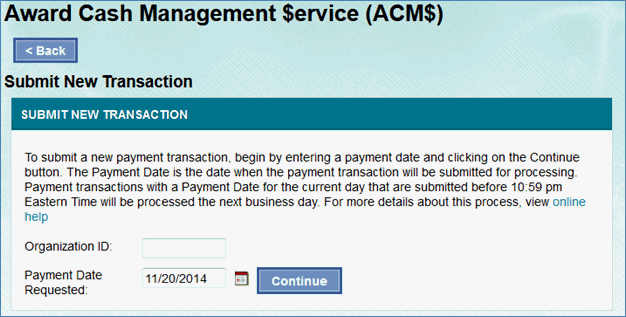
Figure 19 - Submit New Transaction
3. Select a Payment Date Requested and click “Continue.” A new payment transaction will be created.
4. On the Payments tab for the transaction, enter the payment amount in the Payment Amount Requested field.
Note: The payment date will default to the current date.
Note: You can filter the list of awards by selecting the New Awards, Thresholds applied or Payment Outstanding filters above the list of payments. You can refine the list of awards displayed by selecting the “Edit Awards List” button and selecting the awards to display.
5. Click “Save” to save your input and move to the Adjustments tab.
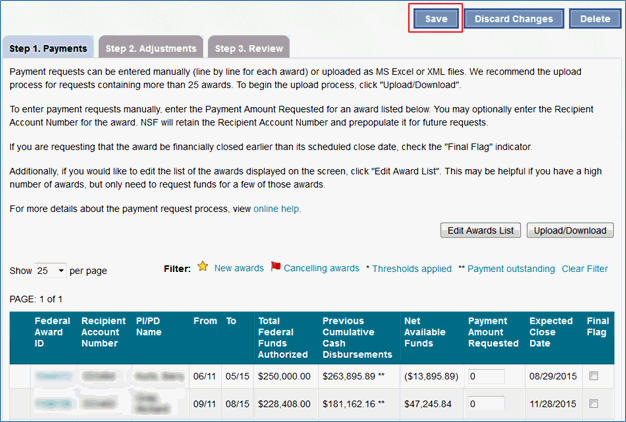
Figure 20 - Payments
Note: If desired, you can input the recipient account number for each award under the Recipient Account Number column.
6. After selecting “Save,” a pop-up box will appear informing you that the payment transaction has been saved. If there are any error messages, they will have to be corrected before you can continue.
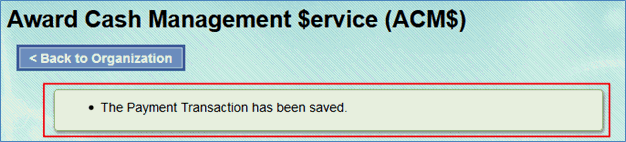
Figure 21 - Payment Transaction message
To create a warehoused payment transaction:
1. Login as an NSF Accountant.
2. On the ACM$ homepage, either:
a. Select the “Submit New Transaction” link in the left navigation and enter an organization ID or
b. Search for and select an organization and navigate to the Submit New Transaction box.
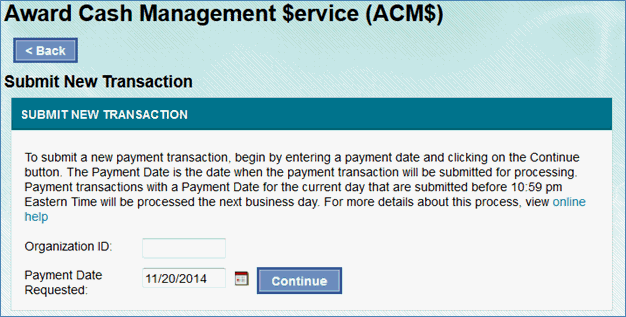
Figure 22 - Submit New Transaction
3. Select a date in the future for Payment Date Requested and click “Continue.” A warehoused payment transaction will be created.
How Do I Enter Payment Requests via Excel or XML?
To enter payment requests via Excel or XML:
1. Navigate to the Payments tab and select the “Upload/Download” button.
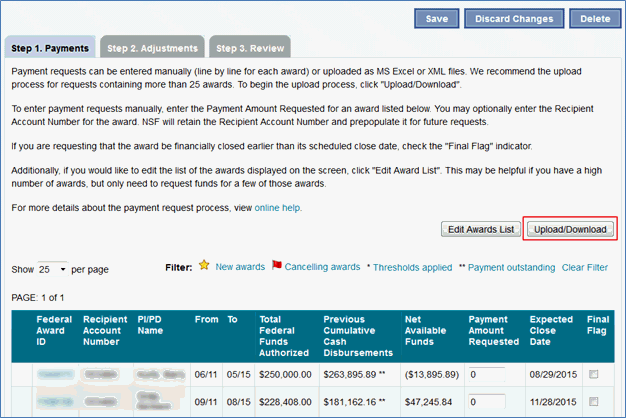
Figure 23 - Payments Tab
2. For Excel, select the appropriate format (xls or xlsx) and click “Download File.” For XML, skip to Step
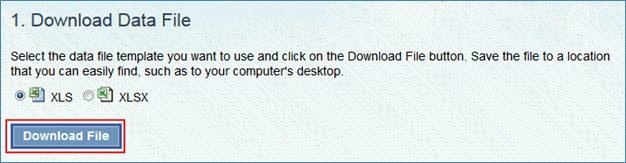
Figure 24 - Download Data Files
3. Update the Excel file by entering the recipient account number (optional) and amount of funds you are requesting by award, and updating the final flag for any award you want to financially close.
4. Save the file to a location you will remember.
5. Select the “Browse” button and locate the Excel or XML file containing the payment transaction and click the “Upload” button. The system will display a confirmation that the upload was successful or an error if unsuccessful.
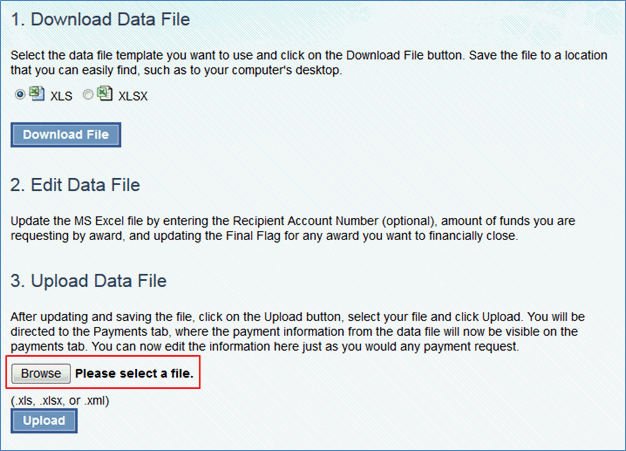
Figure 25 - Upload Data File
How Do I Make an Adjustment Request to a Closed Award?
To make an adjustment request to a closed award, complete the following steps:
1. Login as an NSF Accountant.
2. From the ACM$ homepage, either follow the steps to create a payment transaction and select the Adjustments tab, or click on the transaction ID number under the Draft Transactions section of the transaction you would like to edit.
3. Select the “Step 2. Adjustments” tab.

Figure 26 - Adjustments Tab
4. To enter an adjustment request, enter the Federal award ID for each financially closed award and click “Validate Awards.” You must provide a brief justification in the Justification textbox in order to enter an adjustment to a closed award.
Note: You may enter adjustment requests for up to 5 awards at a time.
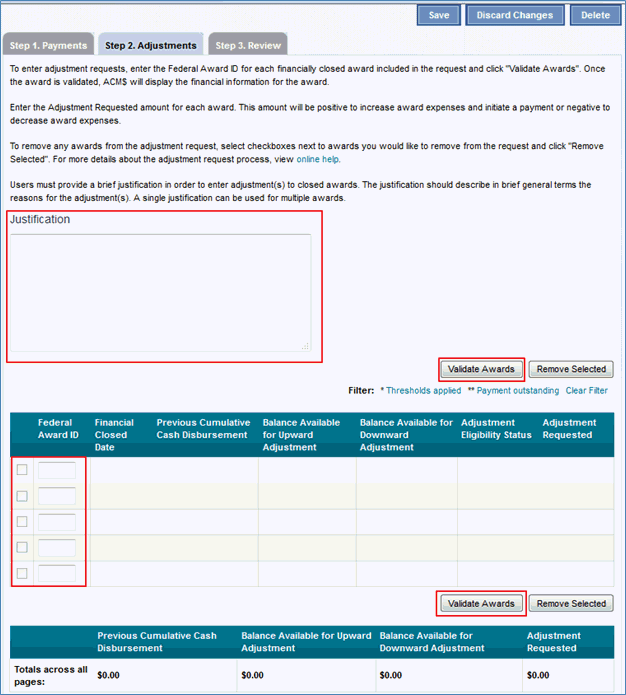
Figure 27 - Adjustments Tab with Justification text box
5. If the Federal award ID is validated, you will have the option to make an adjustment request with a minimum amount of +/- $1.00. After entering an amount, select “Save.”
Note: If an award is ineligible for adjustment, you will see a pop-up error box after clicking “Validate.”
How Do I Review and Forward Payment Transactions for Certification?
To review and forward payment transactions for certification:
1. Login as an NSF Accountant.
2. From the ACM$ homepage, either click on the transaction ID number under the Draft Transactions section of the transaction you would like to review and forward or access this screen while creating a payment transaction by clicking on the Review tab.
3. Select the “Step 3. Review” tab.

Figure 28 - Review Tab
4. You can provide a comment on the transaction if desired. Comments will remain internal to NSF.
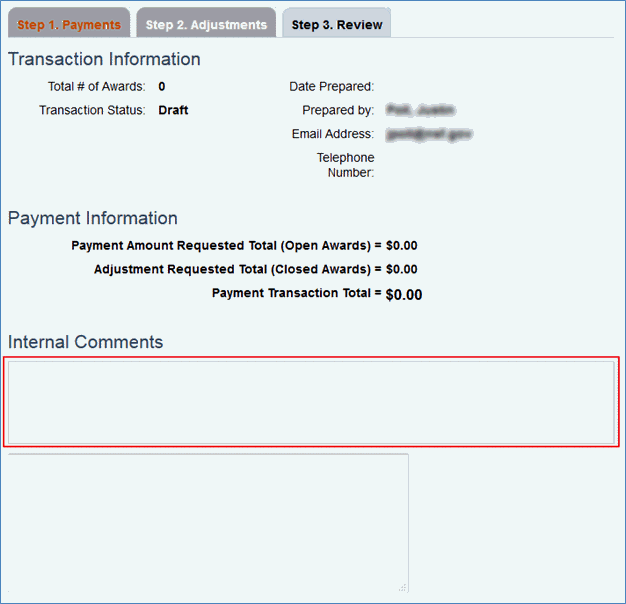
Figure 29 - Transaction Information
5. You can also provide remarks on the transaction. The organization will be able to view remarks added by NSF.
6. Click “Forward for Certification” once complete.
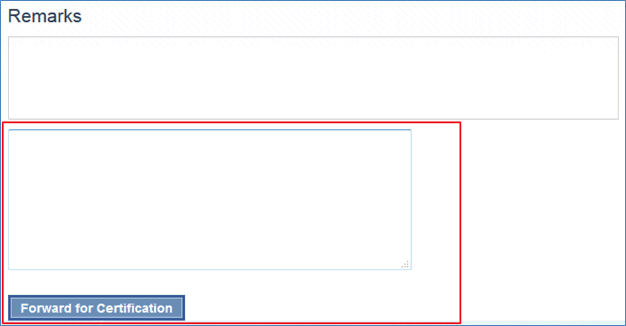
Figure 30 - Transaction Remarks
Note: A minimum of 25 characters must be typed for comments or remarks.
How Do I Certify Payment Transactions?
To certify a payment transaction:
1. Login as an NSF Certifier. On the ACM$ homepage, scroll down to the Awaiting NSF Certification section.
2. Select the transaction ID number of the transaction you would like to certify.
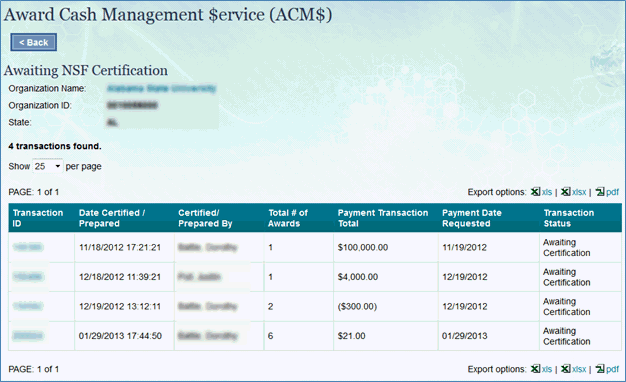
Figure 31 - Awaiting NSF Certification
3. You will be able to review the transaction and, if desired, provide comments and/or remarks.
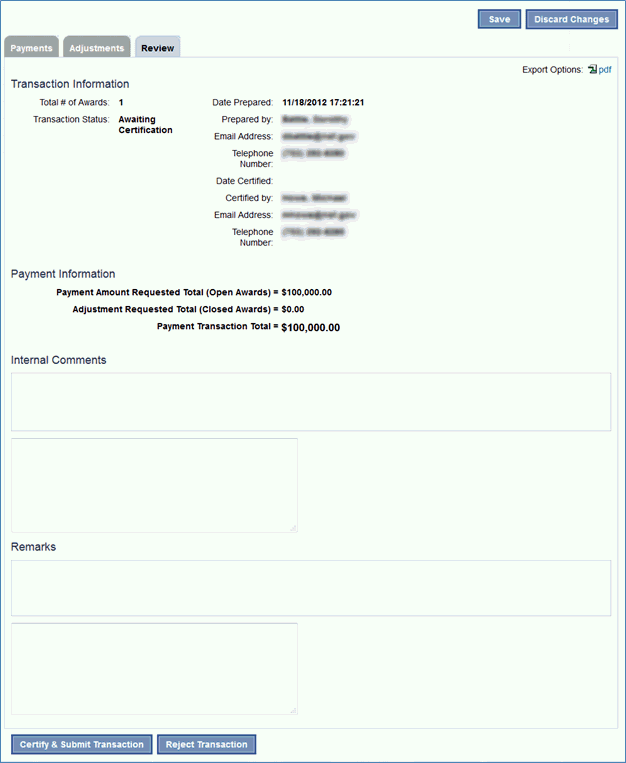
Figure 32 - Review Tab
4. Once you are satisfied with your review and ready to submit, select “Certify & Submit Transaction.”
Note: Clicking “Reject Transaction” will send the transaction back to draft status. Also, NSF Certifiers will only certify payments originated by NSF Accountants.
How Do I Cancel Payment Transactions?
To cancel a Payment Transaction:
1. Login as an NSF Certifier.
2. On the ACM$ homepage, scroll down to the Received Transactions section.
3. Select the transaction ID number of the transaction you would like to cancel.
4. You will be able to review the transaction and, provide remarks before clicking to cancel.
5. Click “Cancel Transaction” to send to cancelled status.
6. The system will ask you to confirm the action.
7. Click OK
8. The system will display a confirmation that the transaction has been cancelled.
Note: Comments are not externally viewable, while remarks are.
How Do I Approve or Reject Payment Transactions
1. Login as an NSF Certifier or NSF Accountant.
2. On the ACM$ homepage, scroll down to the Awaiting NSF Review section.
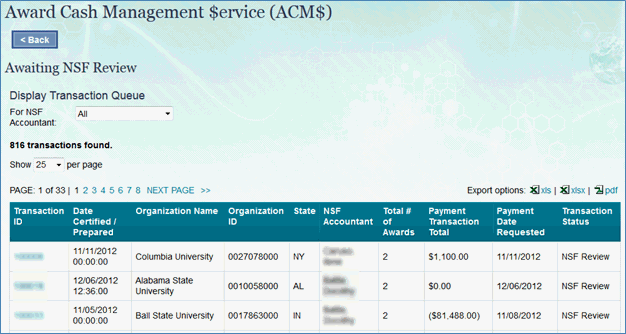
Figure 33 - Awaiting NSF Review
3. Select the transaction ID number of the transaction you would like to review.
4. You will be able to review transaction details and enter internal comments (visible to NSF users only) or remarks (visible to all users) and then select either “Approve Transaction” or “Reject Transaction.”
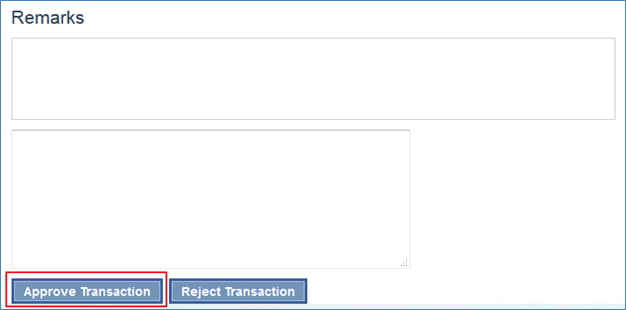
Figure 34 - Comments and Remarks
How Do I Apply or Adjust Thresholds?
Thresholds can be applied at the system level, organization level or award level. Only users with an NSF Certifier role can apply thresholds at the system level.
To apply system level thresholds:
1. Select the “System Thresholds” link in the left navigation.
2. Enter the system threshold details and select “Apply Thresholds.”
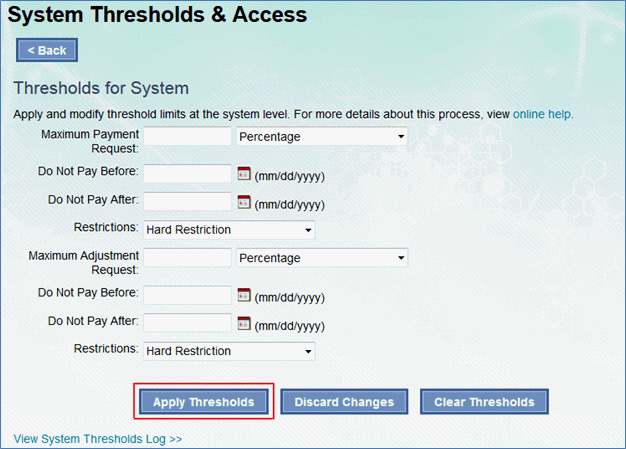
Figure 35 - System Thresholds and Access
3. You can also select “Discard Changes” or “Clear Thresholds.”
To apply organization level thresholds:
1. Search for an organization by name or organization ID and select the appropriate organization.
2. On the Organization Summary screen select the “View Thresholds” link under the organization thresholds header.
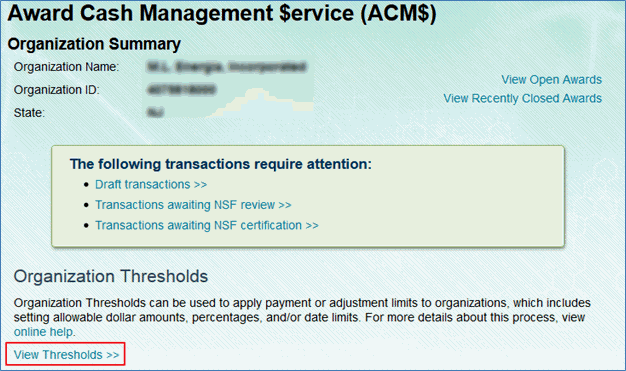
Figure 36 - Organization Summary
4. Enter the desired threshold and select “Apply Thresholds.”
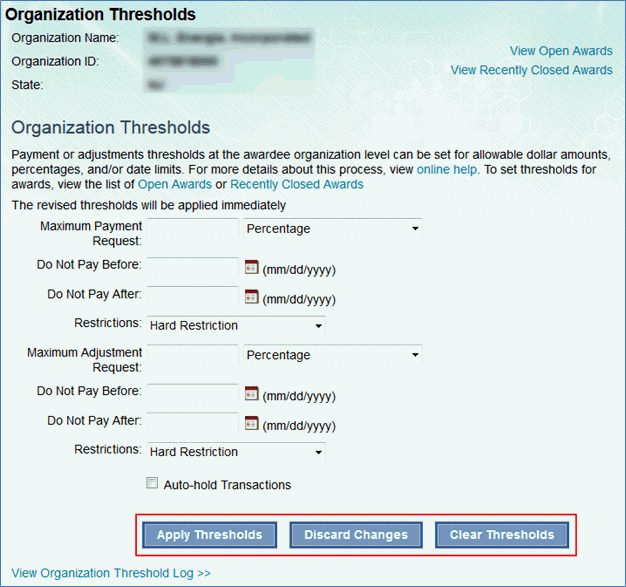
Figure 37 - Organization Thresholds
5. You can also select “Discard Changes” or “Clear Thresholds.”
To apply award level thresholds:
1. Search for an award and select the award ID or select an award ID from within a payment transaction to access the Award Details screen.
2. Scroll to the set threshold for an award section of the screen.
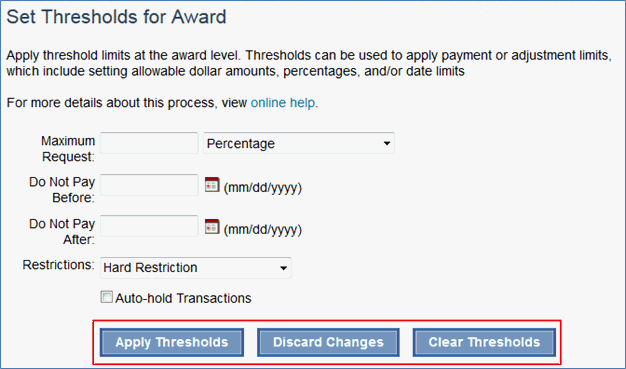
Figure 38 - Set Threshold for Award
3. Enter the threshold details and select “Apply Thresholds.”
4. You can also select “Discard Changes” or “Clear Thresholds.”