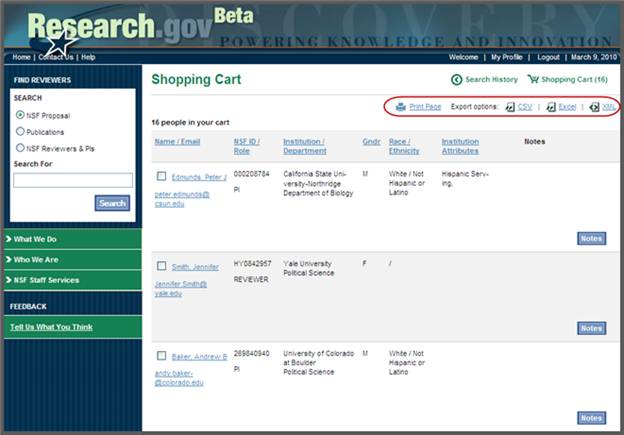
Please click this link for the 508 compliant version of the help.
The first tool available on the Desktop, Find Reviewers, showcases the possibilities that exist in this environment for dynamic, new tools and services and increased access to information. Find Reviewers helps staff find and identify qualified reviewers by marrying information from a variety of sources to give a comprehensive view of potential reviewers. Information from the following initial set of sources is currently available through Find Reviewers:
· NSF Reviewer information
· NSF Principal Investigator (PI) information
· Proposals that have been awarded or declined since November 2006
Find Reviewers makes it easier to identify potential reviewers, qualify the thousands of scientific experts required to support the merit review process, and broaden your reviewer pool.
To help you use the Find Reviewers service, this document provides detailed instructions for:
· Accessing Find Reviewers
· Finding Reviewers Using Keywords (Such As Area of Expertise)
· Searching NSF Proposals
· Finding Reviewers Using Names or Email Addresses
· Searching NSF PI and Reviewer Information
· Reporting Inaccurate Find Reviewer Data
· Viewing NSF Proposal Details
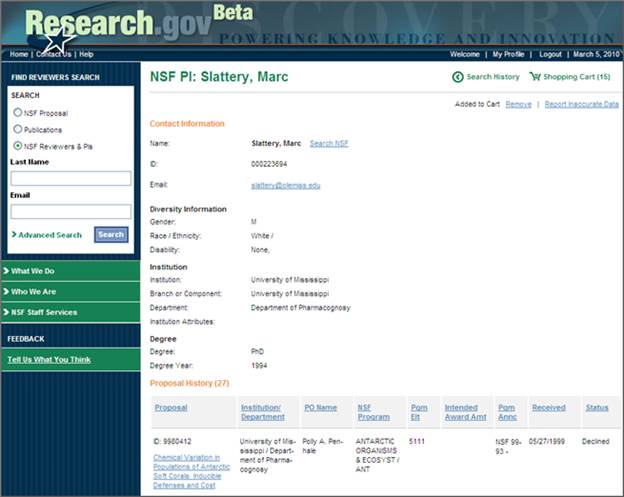
· Viewing NSF PI Details
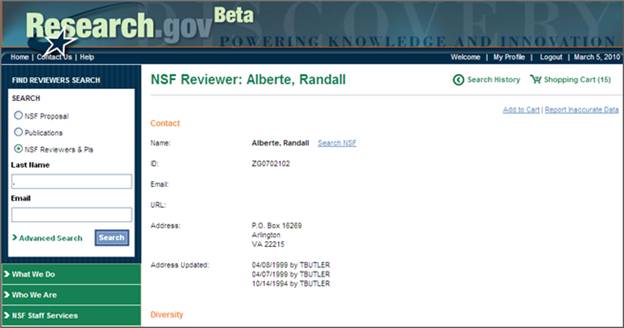
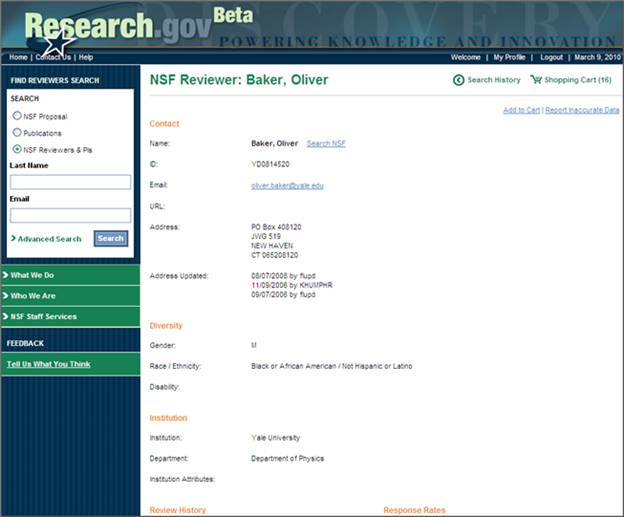
· Viewing NSF Reviewer Details
· Adding Potential Reviewers to Your Shopping Cart
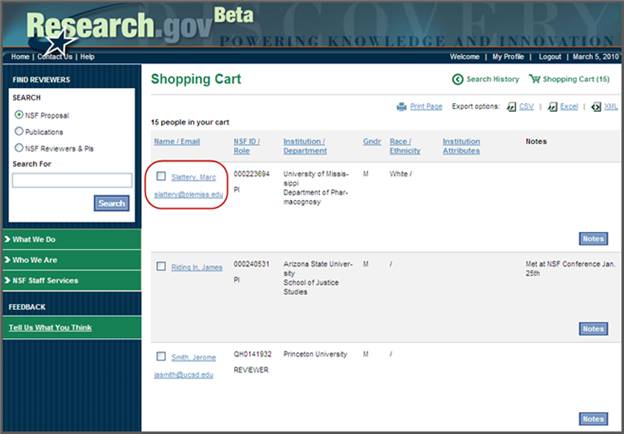
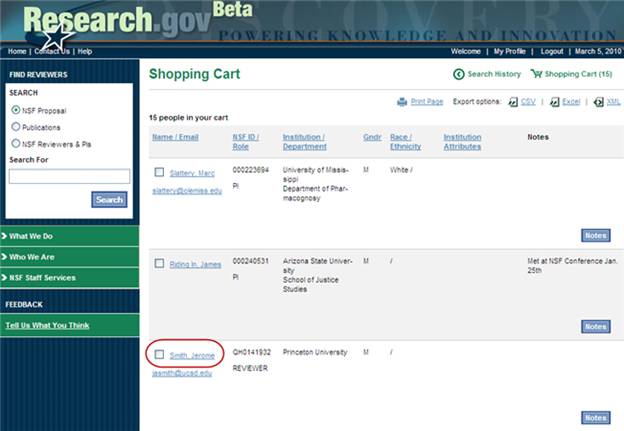
· Viewing, Exporting, and Printing Your Shopping Cart
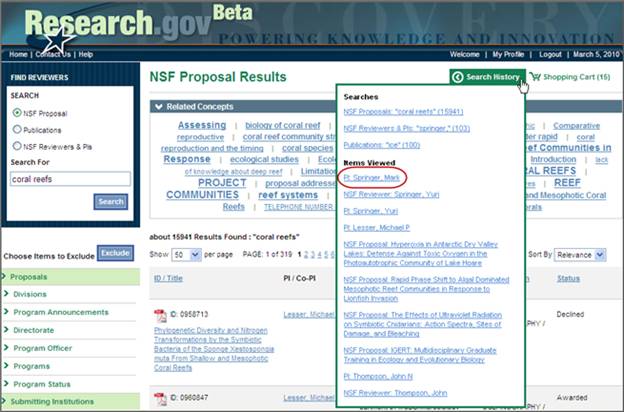
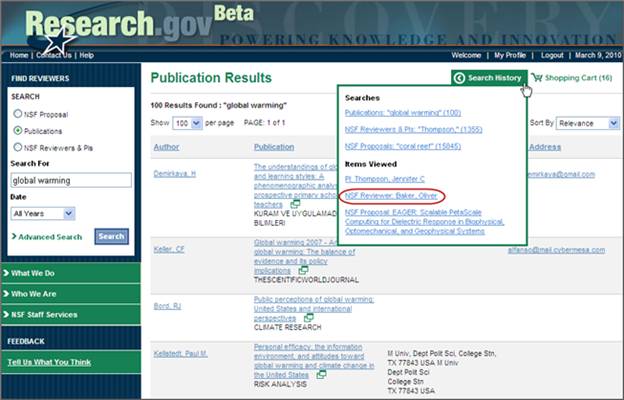
· Viewing Search History
If you have additional questions please contact IT Help Central at x4357 (HELP).
You can access the Find Reviewers service from the Research.gov Desktop while on the National Science Foundation (NSF) network.
Accessing through Research.gov/Desktop
In order to access Find Reviewers service, you must be logged into the Research.gov/Desktop. You can login by going to www.research.gov/desktop and entering your NSF LAN ID and password. Please note: you must be logged into the NSF network in order to access the Desktop. If you are working remotely, you must access the Desktop through Access NSF
Following login, you will be automatically directed to the Desktop Homepage.
Click on the Find Reviewers link located under the NSF Staff Services menu in the top navigation. You will then be directed to the Find Reviewers Homepage where you can learn more about Find Reviewers or begin using the service (see Figure 1).
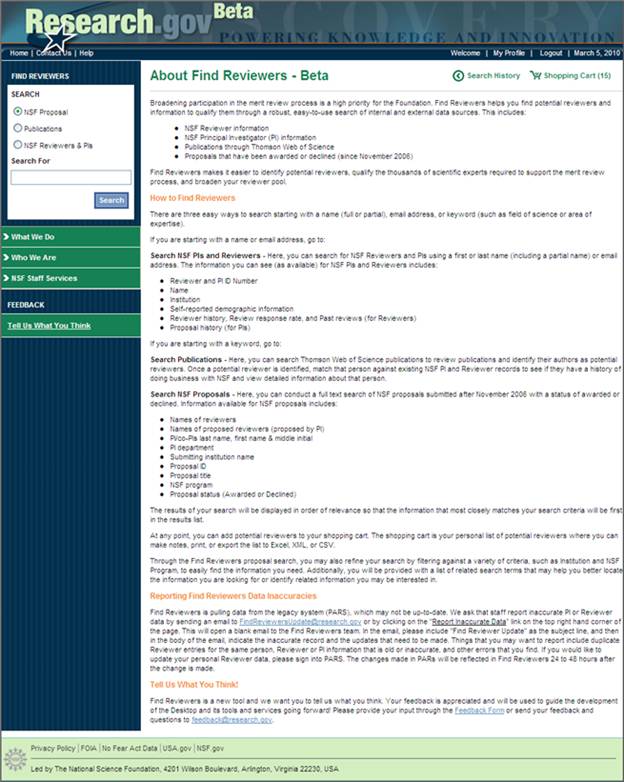
Figure 1 – Find Reviewers Homepage
Note: By logging into the Research.gov/Desktop, you are gaining access to sensitive information as governed by NSF Bulletin 08-10 (http://www.inside.nsf.gov/pubs/issuances/ib0514_1.pdf)
There are two easy ways to search: keyword (such as field of science or area of expertise) and a name (full or partial) or an email address.
Finding Reviewers Using Keywords
You can find find potential reviewers using keywords (such as field of science or area of expertise) by searching NSF Proposals
Note: The system searches the full text of NSF proposals that were submitted since November 2006 and the titles of proposals submitted before November 2006. NSF Search Results will include only proposals with the status of awarded or declined proposals and exclude any proposal submitted by a current employee or current IPA at NSF.
Search NSF Proposals – Here, you can conduct a keyword search of the full text of NSF proposals submitted since November 2006, as well as the titles of proposals submitted before that date with a status of awarded or declined.
Information available in the search results for NSF proposals includes:
· Names of Proposal Reviewers
· Names of Proposed Reviewers (proposed by PI)
· PI/co-PIs Last Name, First Name & Middle Initial
· PI Department
· Institution Name
· Proposal ID
· Proposal Title
· NSF Program
· Proposal Status (Awarded or Declined)
To conduct a keyword search of NSF proposals:
1. From the Find Reviewers Homepage (see Figure 2), select Find the Reviewers Search option for NSF Proposals, enter the keyword(s) you wish to search for, and click Search. The NSF Proposal Results page will display a list of the results that match your search criteria (see Figure 3)*. Search results are ranked by relevance, so proposals that include the highest number of instances of your search criteria will be at the top of the list. The NSF Proposal Results screen will display your results (see Figure 3).
Note: Boolean search standards are acceptable. A Boolean search allows you to use terms such as, AND, OR, and NOT to broaden or narrow your search.
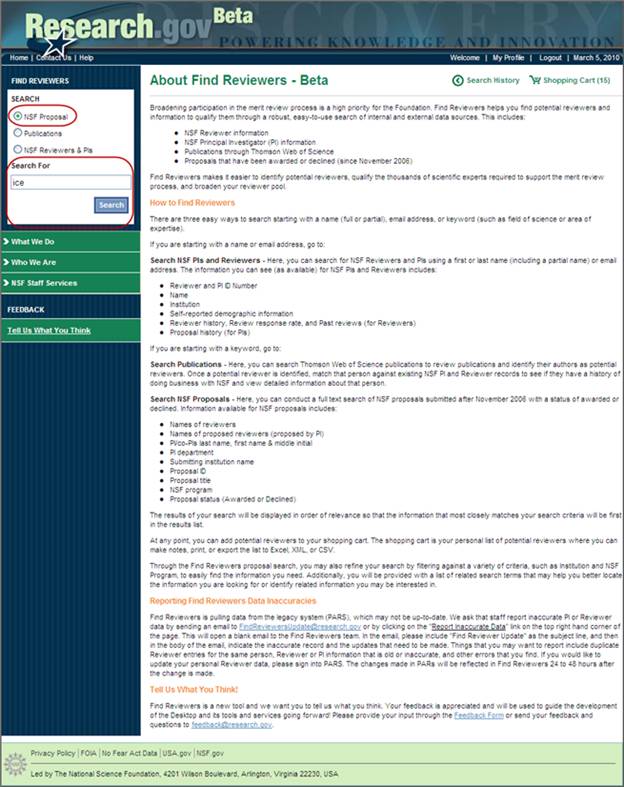
Figure 2 – Conducting a Keyword Search of NSF Proposals
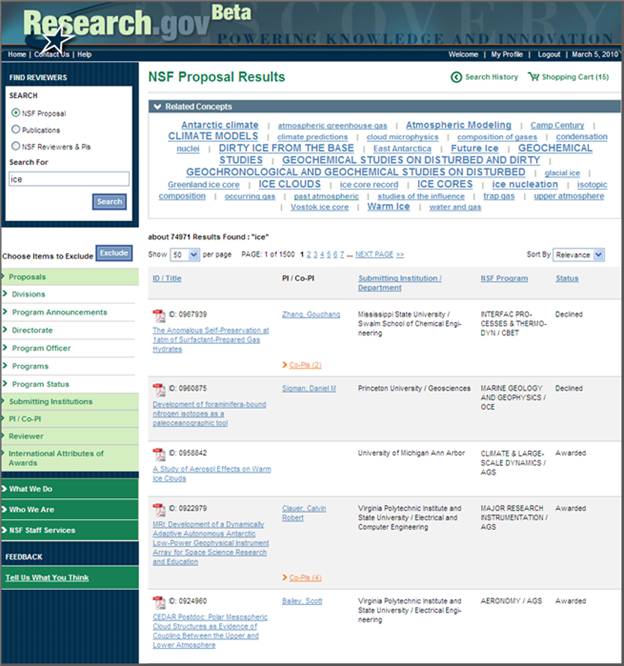
Figure 3 – NSF Proposal Results screen
From the NSF Proposal Results page (see Figure 3) you are able to:
Refine your search by filtering against a variety of criteria
View and search on related topics/concepts
View full proposal text with your search terms highlighted throughout
View proposal details for each of the proposals listed
View pages with detailed information on the PI/co-PIs listed
View Search History
View the list of potential reviewers in your shopping cart
Select a category (e.g., Program Announcements, Program Officer, Directorates, etc.) from the Choose Items to Exclude menu on the left side of the NSF Proposal Results page (see Figure 4). The criteria included in the menu are based on the information included from the list of proposals generated by your search. For example in Figure 4, the user clicked on the Divisions category and as a result, was shown a list of Divisions that applied to the proposals listed in her search. Selecting one of these criteria (e.g., the name of a specific Division) will refine your search to exclude all proposals from your search results list that match your original search term and include your filtering criteria (for example, proposals that include the term global warming and were submitted to the Chemical, Bioengineering, and Transports (CBET) Division). You can select up to a maximum of 30 filters. After you have finished selecting fields to filter out of the search results, click Exclude (see Figure 4)
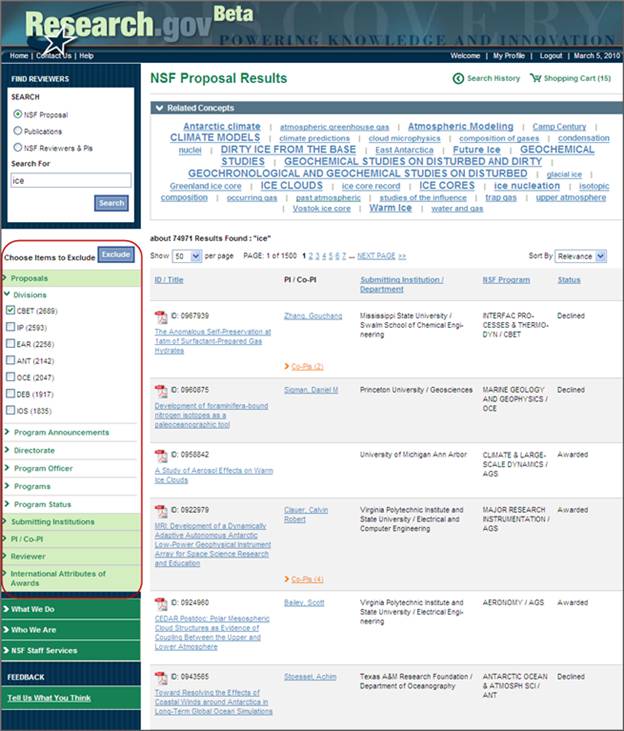
Figure 4 – Refining Your Search
To add back excluded items, select the field you want to add back in from the Excluding from Results menu (see Figure 5). This will add the previously excluded information from that field back into your search results.
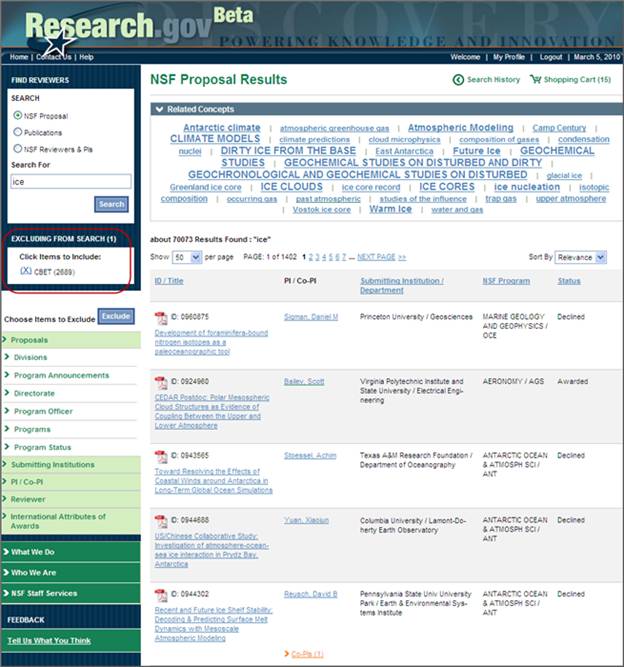
Figure 5 – Adding Excluded Information Back Into Your Search Results
Viewing Related Concepts/Topics
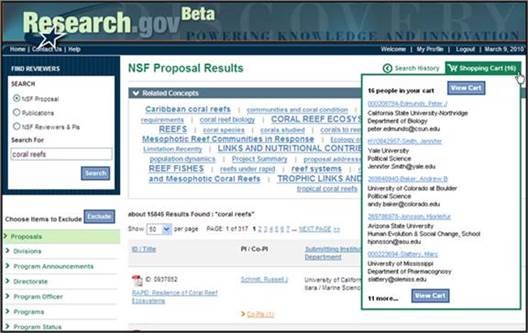
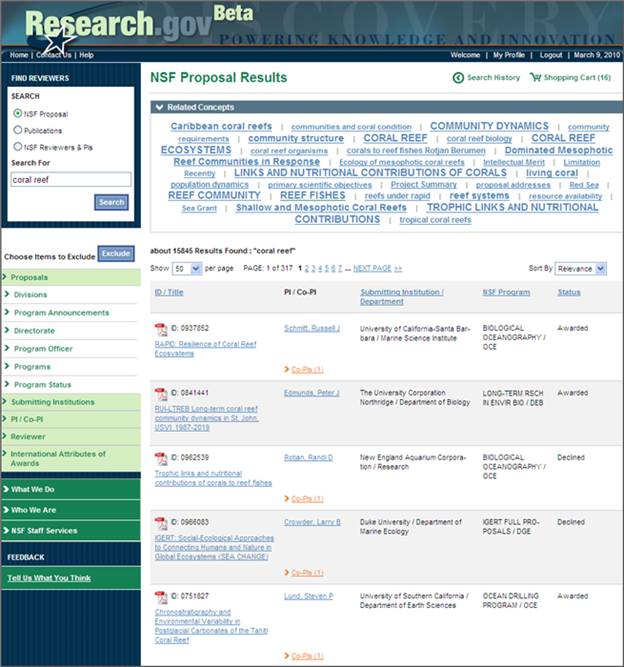
In addition to a list of search results, each search will display a list of concepts/topics related to your search term. The list of related concepts is displayed above the list of search results on the Search Results page (see Figure 6). You will notice that the terms in the Related Concepts box are sized differently and that some of the terms are completely capitalized. The different sizes reflect the relevancy of the related concept term to your original search. The larger and bolder the term in the Related Concepts box, the more relevant it is to your search. For example, the largest bold terms displayed in all capital letters are those most relevant to your search.
Click on one of the concepts (for example, climate change) to start a new search for NSF proposals that contain the search term. Please note that this will begin a new keyword search of NSF Proposals and is not a way to refine your current search results. The new search will also clear any filters that you had selected. If you did not intend to navigate away from your current search results screen, you can return to your previous search results screen through the Search History or by clicking the back button.
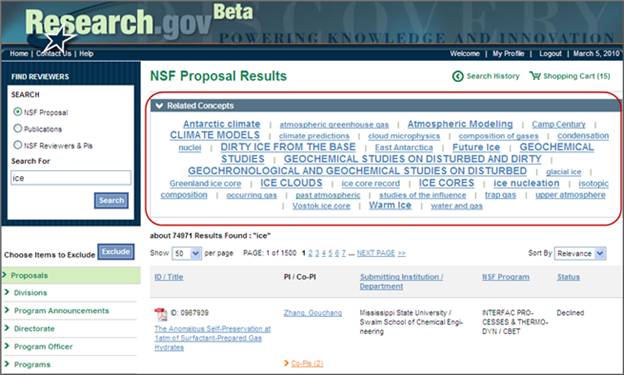
Figure 6 –View Related Concepts
Finding Reviewers Using a Name or Email Address
You can search for potential reviewers in NSF PI and Reviewer records using a name (full or partial) or an email address. Please note that the same PIs and Reviewers may appear multiple times in search results.
To search NSF PI and Reviewer information using a name or email address.
From the Find Reviewers Homepage (see Figure 9), select the Find Reviewers Search option for NSF Reviewers & PIs.
Enter a Last Name (full or partial) and/or Email Address to find Reviewer and PI records matching the information entered (see Figure 9). Either a Last Name or Email Address is required to begin an NSF Reviewers and PIs Search.
If you have additional information about the potential reviewer you are looking for, click on Advanced Search to enter all or part of the following optional search criteria (see Figure 9):
· First Name
· Middle Initial
· Institution Name*
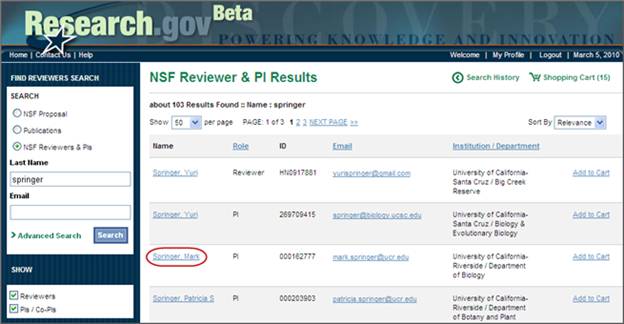
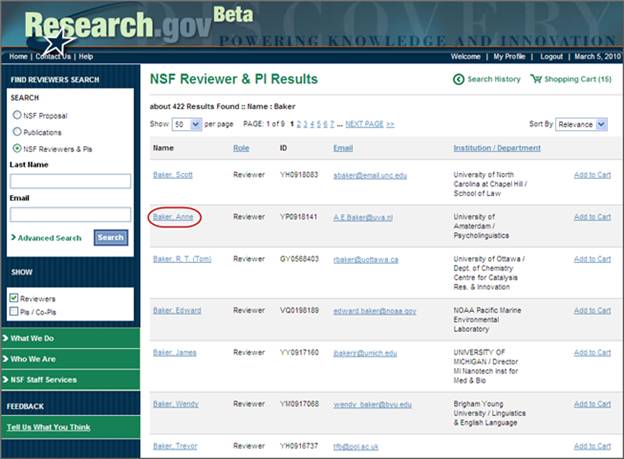
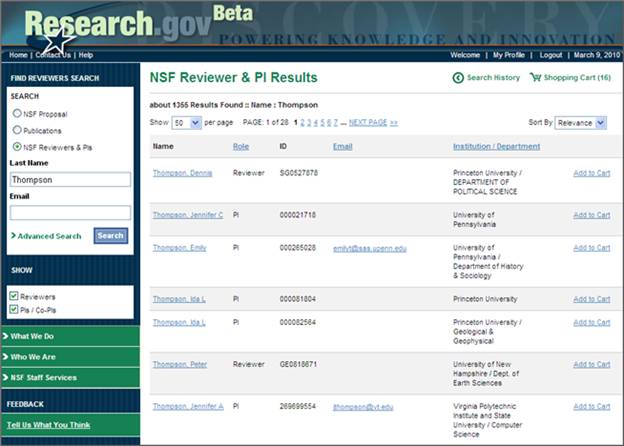
Click Search (see Figure 9). The NSF Reviewer & PI Results page will be displayed (see Figure 10). Results are ranked by relevance with exact matches and proposals that include the highest number of instances of your search criteria appearing at the top. Results can be sorted by clicking on the category in blue at the top of the column. Note that any initial results that had no entry in that particular category will be removed from the sorted list, so the total number of returned results may decrease. Results that exactly match the search criteria will always be shown first in the results list, even if the results are sorted by another column.
You can filter the search results to Show only Reviewers or PIs/Co-PIs by selecting either the PI or Reviewer checkbox on the left side of the screen (see Figure 10).
*Please note: The same Institution’s name may display differently for different proposals, PIs and Reviewers and Institution IDs may not make sense.
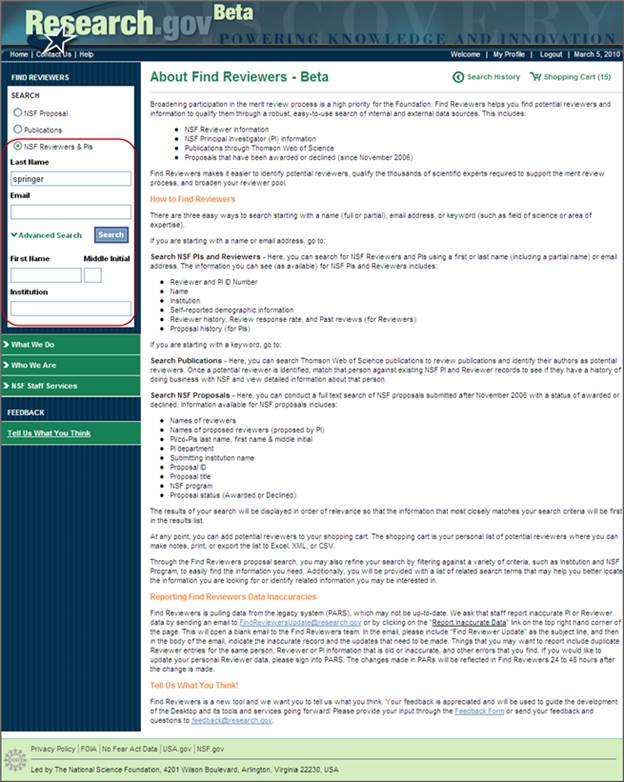
Figure 9 – Conducting a Search of NSF Reviewer and PI Information Using a Name or Email Address
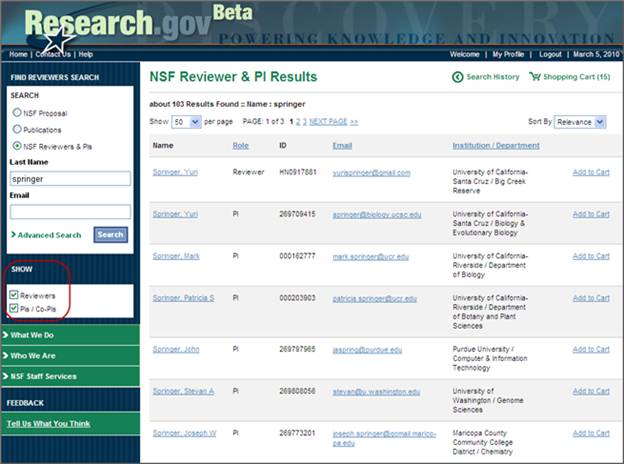
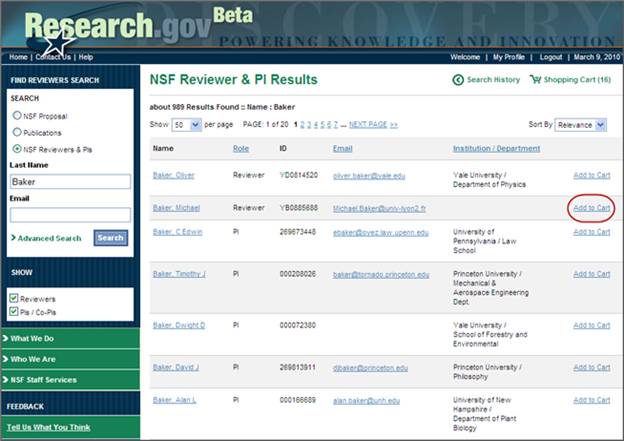
Figure 10 – NSF Reviewers & PIs Search Results Page
From the NSF Reviewers & PIs Search Results page (see Figure 10) you are able to:
Add PIs and Reviewers to your Shopping Cart to save them as potential reviewers
View detailed information for each Reviewer listed
View detailed information for each of the PI/co-PI listed
View your Search History
View the contents of your Shopping Cart
Reporting Inaccurate Find Reviewer Data
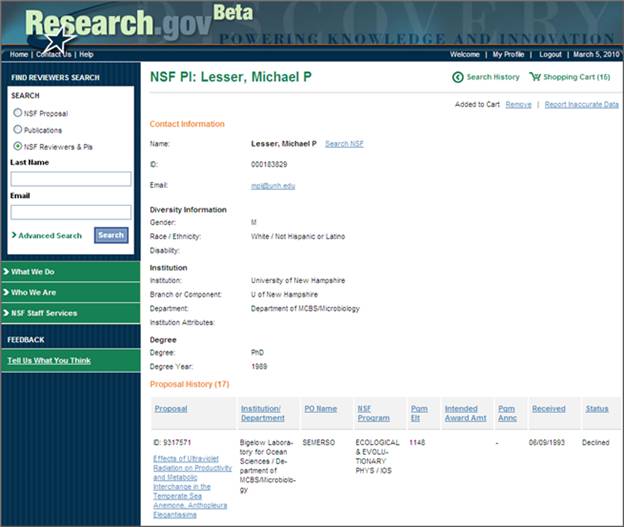
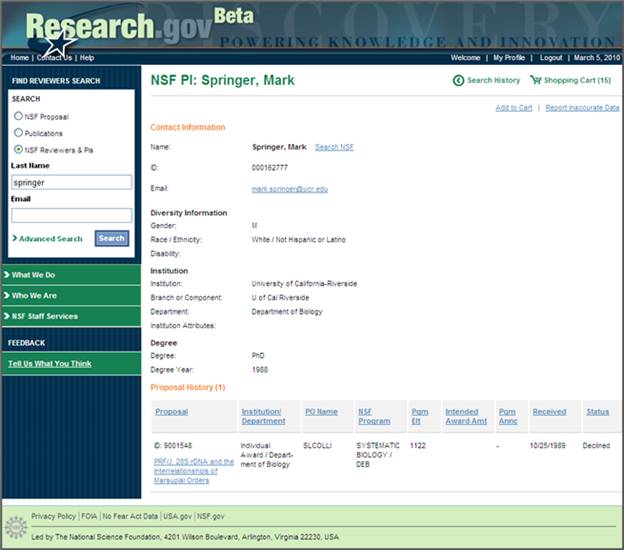
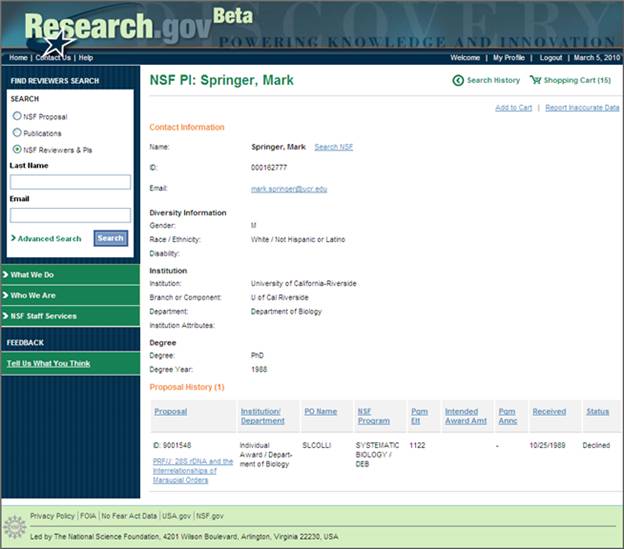
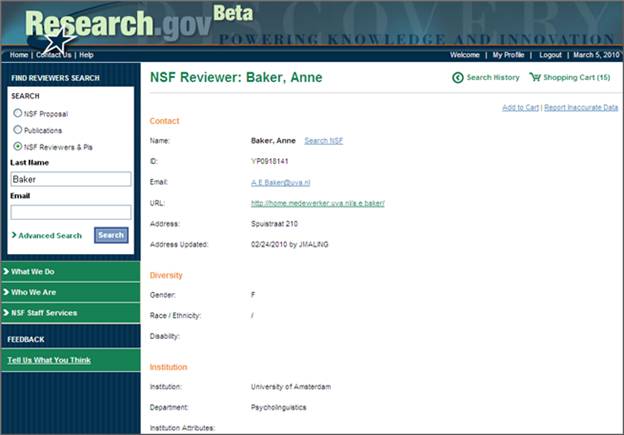
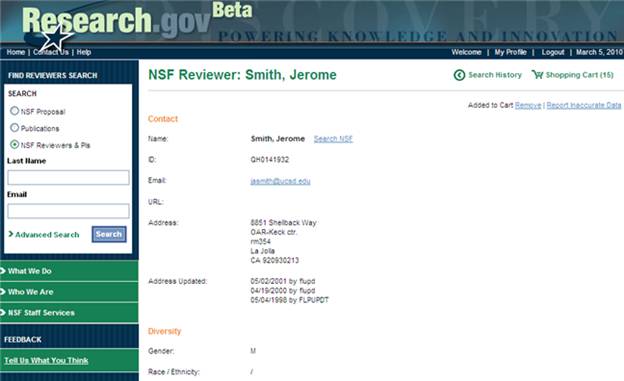
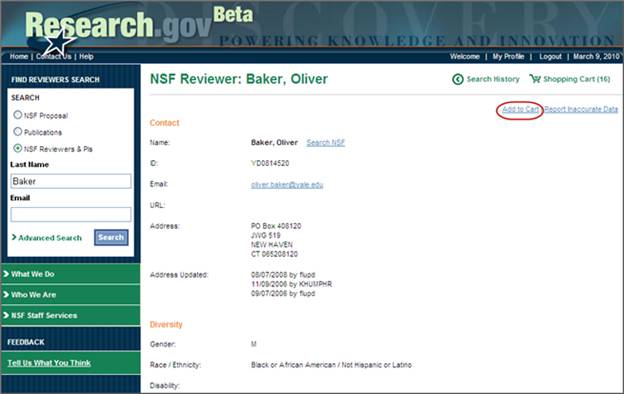
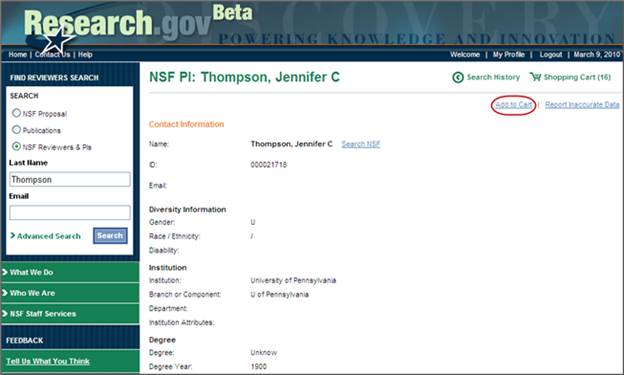
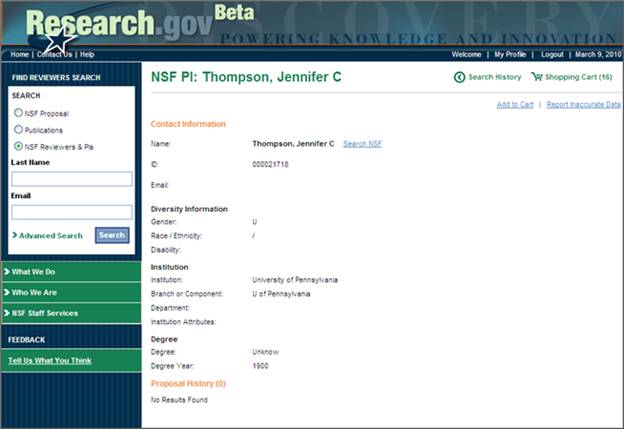
Find Reviewers is pulling data from the legacy system (PARS), which may not be up-to-date. We ask that staff report inaccurate PI or Reviewer data by sending an email to FindReviewersUpdate@research.gov or by clicking on the PI or Reviewer to view their detail page (See Figure 11) and then clicking on the Report Inaccurate Data link on the top right hand corner of the page (See Figure 12). This will open a blank email to the Find Reviewers team. In the email, please include “Find Reviewers Update” as the subject line, and then in the body of the email, indicate the inaccurate record and the updates that need to be made. Things you may want to report include duplicate Reviewer entries for the same person, Reviewer or PI information that is old or inaccurate, etc.
If you would like to update your personal Reviewer data, please sign into PARS. The changes made in PARS will be reflected in Find Reviewers 24 to 48 hours after the change is made.
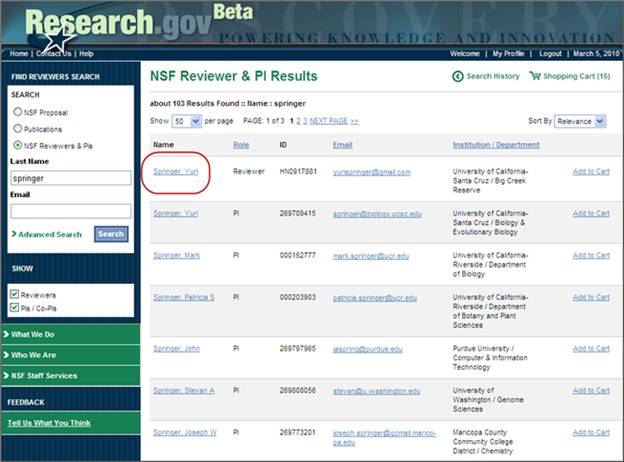
Figure 11 – Reporting Inaccurate Reviewer or PI Data
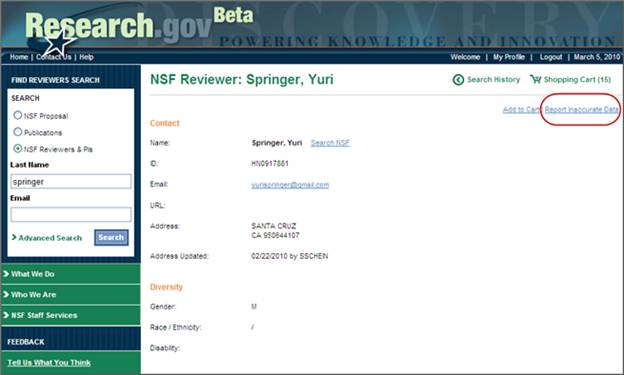
Figure 12 – Link to Report Inaccurate Reviewer or PI Data on the Detail Page
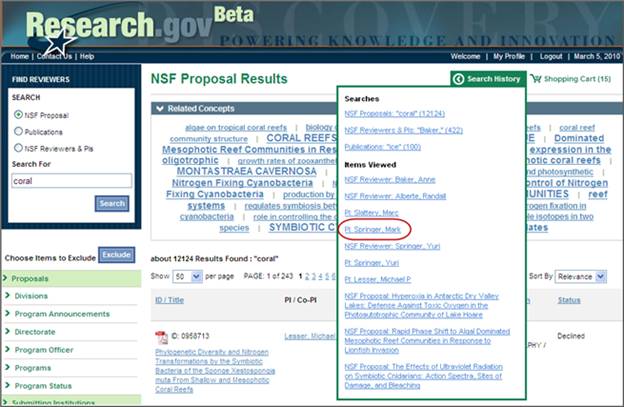
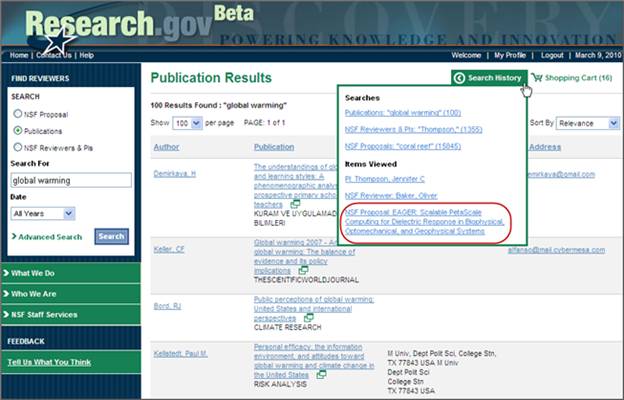
You can view detailed information for any NSF proposal displayed in the Find Reviewers service by clicking the Proposal Title on the following pages:
NSF Reviewer Detail
NSF PI Detail
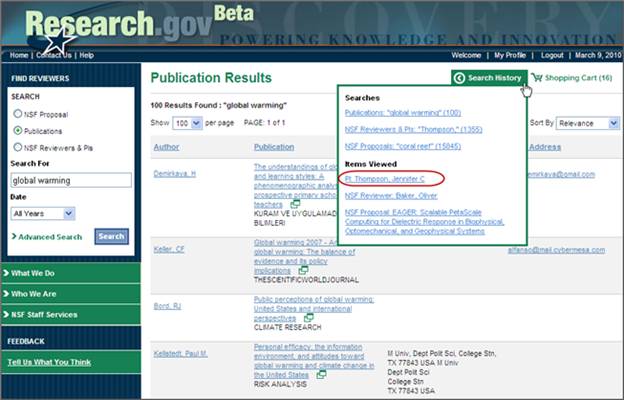
Search History
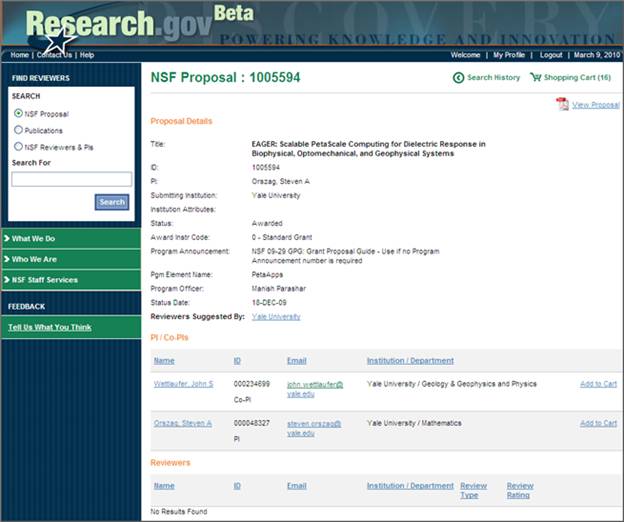
The detail information available for each proposal includes:
Proposal Details
Proposal Title
Proposal ID
PI Name
Submitting Institution
Institution Attributes
Status
Award Instrument Code
Program Announcement
Program Element Name
Program Officer
Status Date
Reviewers Suggested By PI
PI/Co-PI Information
Reviewers Information
Viewing NSF Proposal Detail from NSF Proposal Results Page
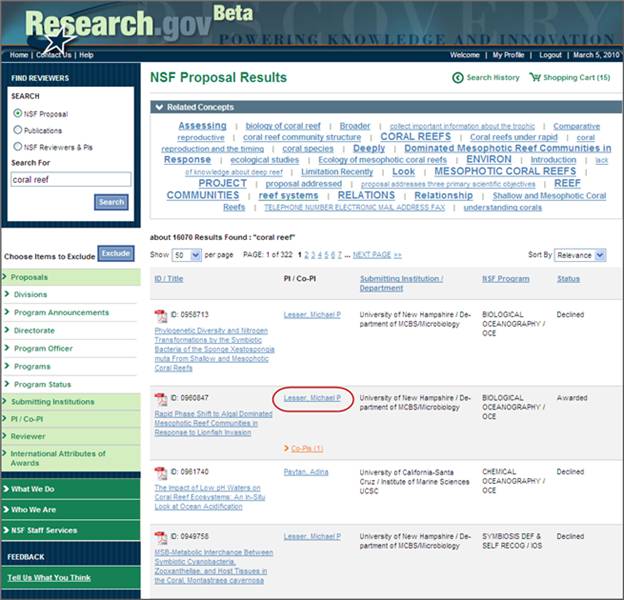
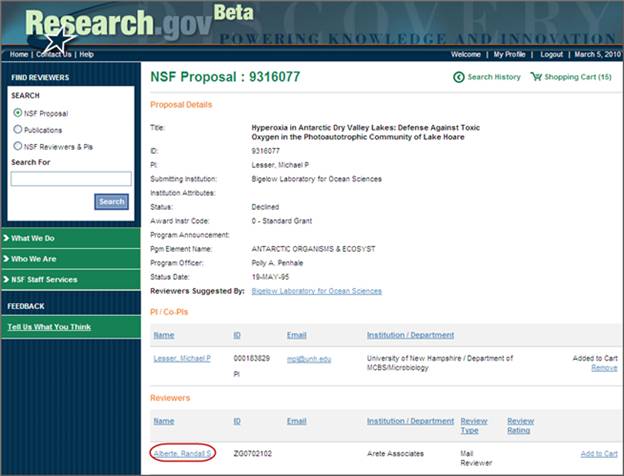
To view the detail information page for a proposal, click on a Proposal Title on the NSF Proposal Results page (see Figure 13). The NSF Proposal Detail page will display the following proposal information (see Figure 14).*
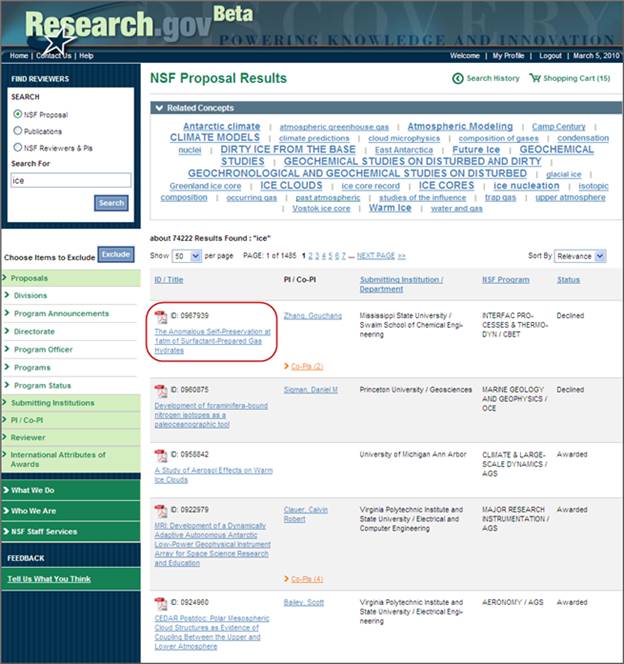
Figure 13 – NSF Proposal Results Page
* Please note: The Collaborative Proposals detail page differs from the Proposal Detail Page pictured and the PI listed is the Lead PI of the Lead Proposal.
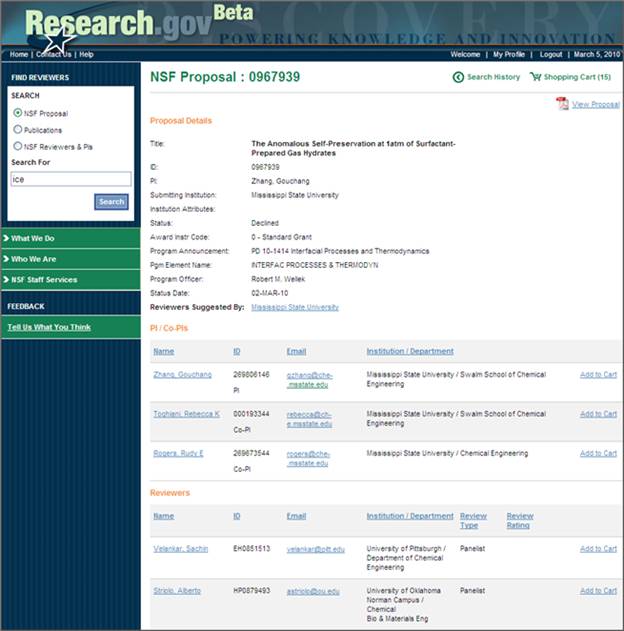
Figure 14 – NSF Proposal Detail Page
Viewing NSF Proposal Detail from NSF Reviewer Detail Page
To view the detailed information for a proposal, click on a Proposal Title in the Reviews section of the NSF Reviewer Detail page (see Figure 15). This will take you to the NSF Proposal Detail page for that proposal (see Figure 16).
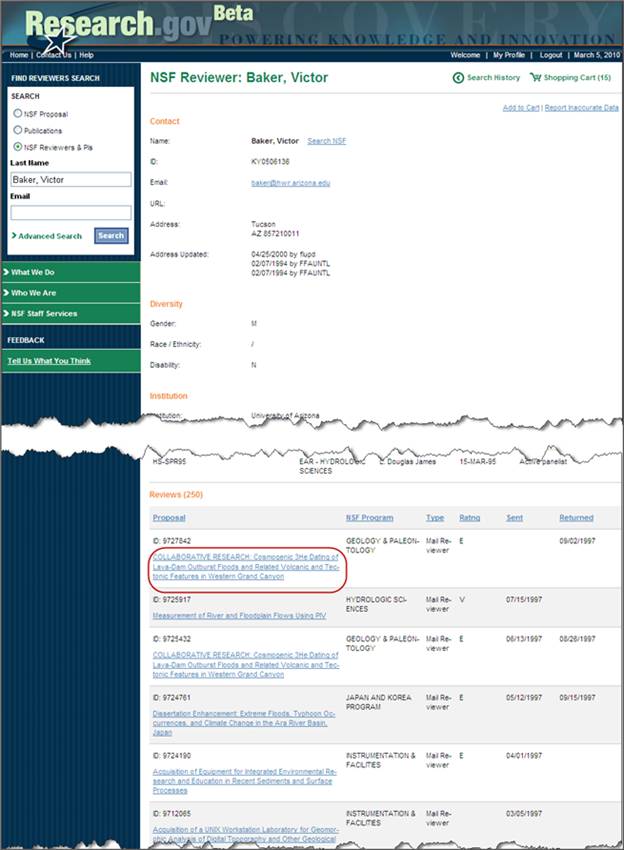
Figure 15 – NSF Reviewer Detail Page
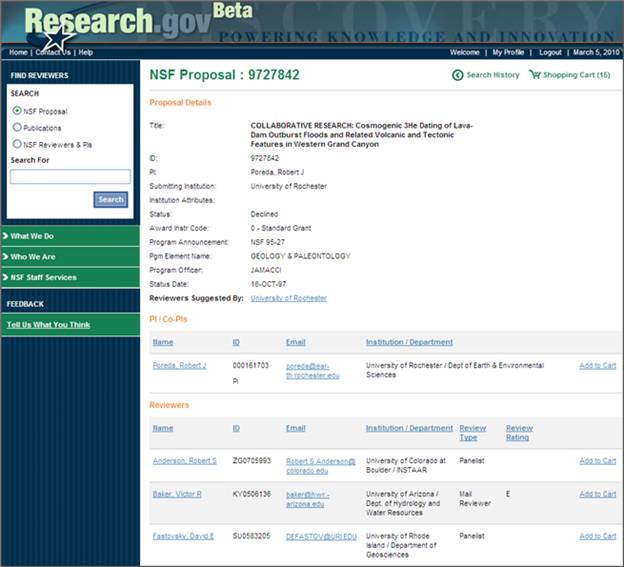
Figure 16 – NSF Proposal Detail Page
Viewing NSF Proposal Detail from NSF PI Detail Page
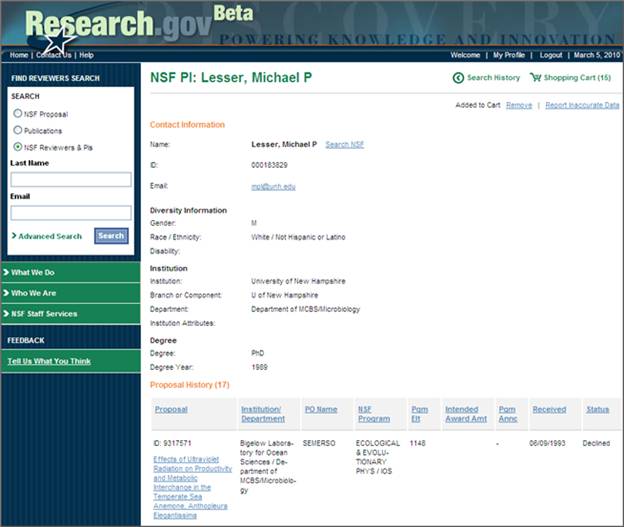
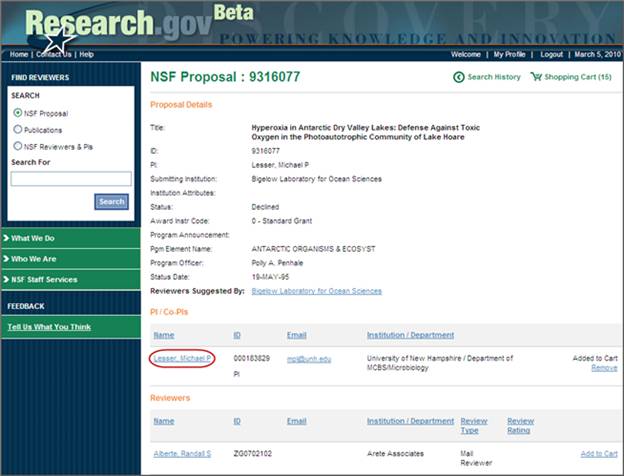
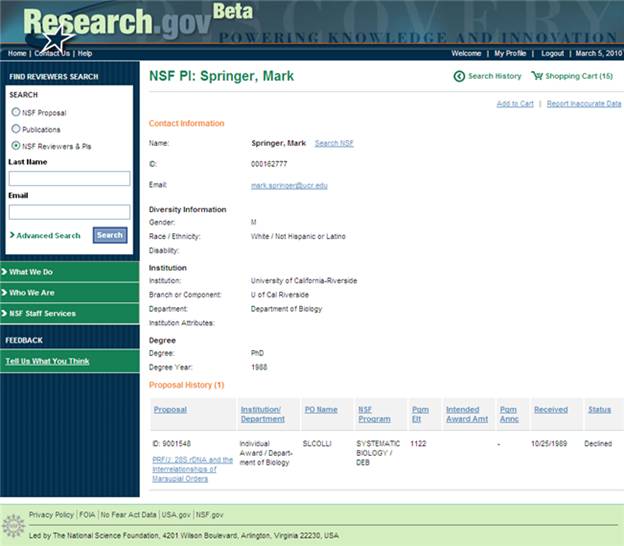
To view the detailed information for a proposal, click on a Proposal Title in the Proposal History section of the NSF PI Detail page (see Figure 17). This will take you to the NSF Proposal Detail page for that proposal (see Figure 18).
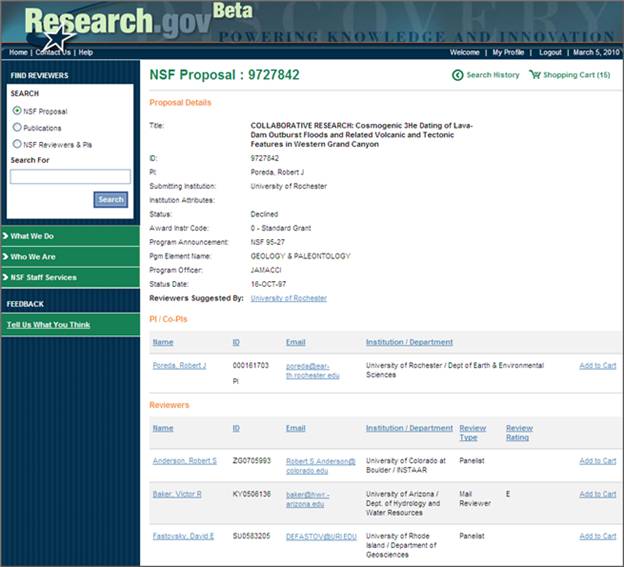
Figure 17 – NSF PI Detail Page
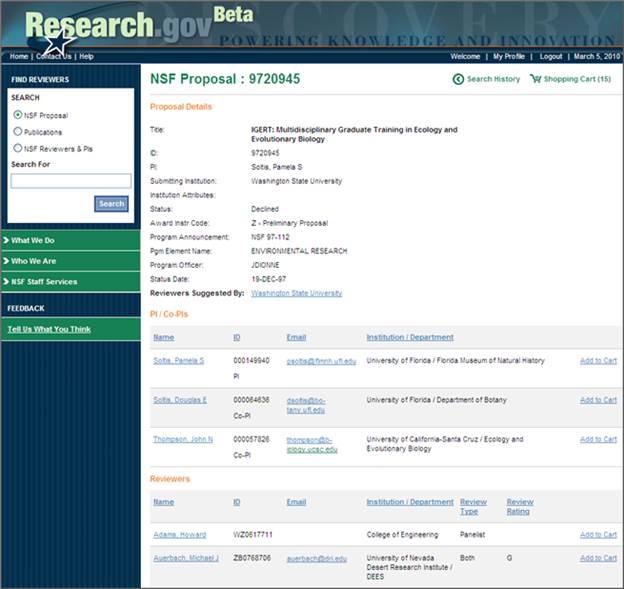
Figure 18 – NSF Proposal Detail Page
From the NSF Proposal Detail page (see Figure 18) you are able to:
View NSF PI Information
View NSF Reviewer Information
View a PDF of the full proposal text
View Reviewers Suggested by PI
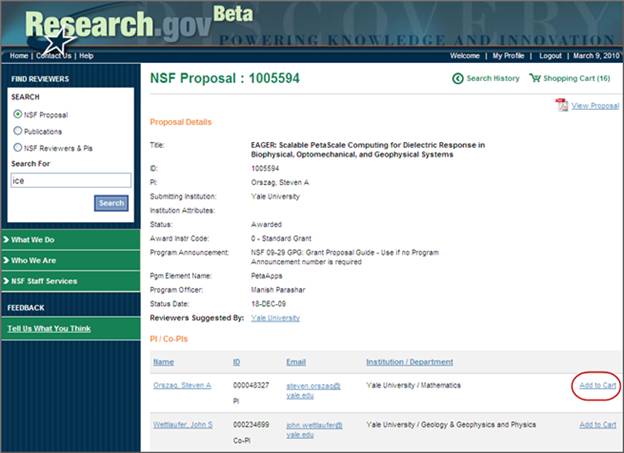
Add to PI/co-PIs and/or Reviewers to your Shopping Cart
Remove a PI/co-PI and/or Reviewer from the Shopping Cart
View the content of your Shopping Cart
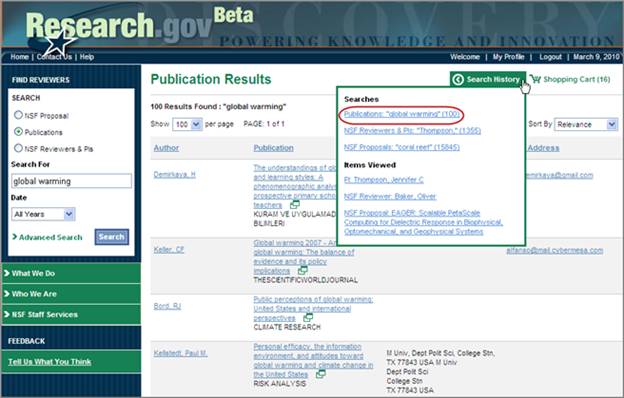
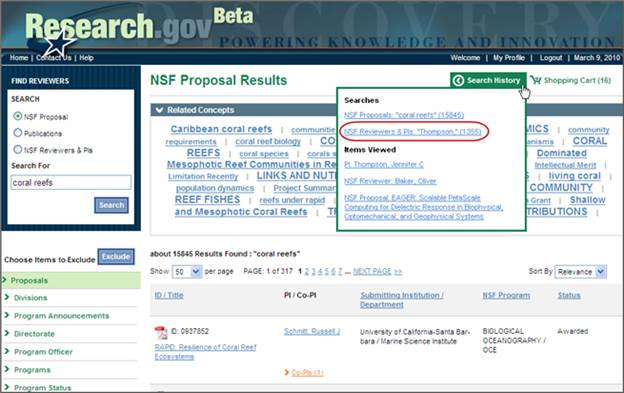
View your Search History