Document Search
Introduction to Document Search
Document Search allows staff to perform powerful, full-text keyword searches on NSF proposals and annual, interim, and final reports, highlighting the section of searched text within its results. The tool provides an extensive range of searchable fields so that staff can associate a desired keyword with specific field filter results. Searching on common fields is even easier in the latest version of the search engine as Faceted Searching (http://en.wikipedia.org/wiki/Faceted_search) has been implemented. The real power of Document Search is the complex search criteria (using any combination of fields, proximity searches, phrases, boosting terms, grouping, etc.) to provide NSF staff with a very targeted result set.
An additional feature available in the latest version of the search engine is the “MoreLikeThis” button which is available along with the search results. The “MoreLikeThis” option lists documents in the NSF search index which are “similar” to the original returned result. This feature is useful for identifying documents with matching content, and the top five results are returned in order of similarity, along with a relative numerical “score”.
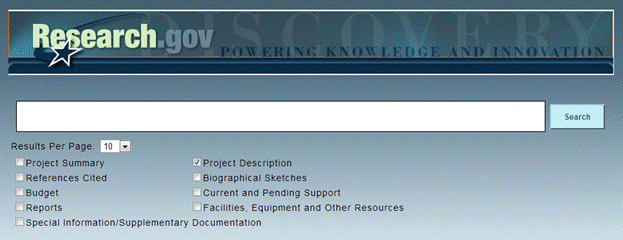
The most basic way to use Document Search is to simply type a word in the text box and to click the “Search” button (Figure 1). The real benefit of Document Search however comes from being able to create more complex queries using the Lucene query language which allows users to narrow their searches. See below for example search queries.
Beginning in May 2012, for complex search queries, NSF staff can easily identify (via check boxes) the proposal section(s) they wish to search. For example, rather than include Section_Title: Proposal_Description in a query string, users can simply check the box next to that section from the list.
Note: For more information about the Lucene Query Syntax, please review the official query syntax documentation, here.
Figure 1- Document Search Page
The following table provides sample queries and examples of what some of the search results would be.
Search Types |
Description/Example |
Phrases |
“strange attractor”
matches documents containing the phrase “strange attractor” in the body |
Wildcard Searches |
be?t
matches belt, best, bent
univer*
matches universe, universal, university |
Fuzzy Searches |
heating~0.7
matches heating, healing, Keating, setting, seating, meeting
Note: Fuzzy searches may take longer to process as they are typically the most complex search. |
Proximity Searches |
"space weather"~5 matches “The Space
Weather
Workshop is an annual meeting that brings industry, academia,
and government agencies together in a lively dialog about space
weather.” Note: Wildcards are also supported in proximity searches, such as: "space weath*"~5
Which increases the flexibility of the search |
Fields* |
Proposal_Title: oil
matches “RAPID Chemical Analysis of Atmosphere Associated with Gulf Oil Spill" and "RAPID Impact of Gulf Oil Surface Films on Atmosphere-Ocean Exchange” |
Boosting Terms |
oil^10 water
matches documents containing oil or water and makes the word oil more important than water
oil water^10
matches documents containing oil or water and makes the word water more important than oil |
Boolean Operators |
gulf AND oil
matches documents containing both gulf and oil in the body
gulf NOT oil
matches documents containing gulf but not oil in the body
gulf OR oil
matches documents containing either gulf or oil or both in the body |
Grouping |
(galaxy OR universe) AND California
matches documents with either galaxy or universe and California in the body |
Field Grouping* |
Division: (AGS OR AST)
matches proposals from the AGS or AST divisions
Proposal_Title: (galaxy AND universe)
matches proposals with both galaxy and universe in the title |
*Types of Fields Available to Search
Proposal_ID
Inst_Name
Section_Title
Proposal_Title
Directorate
Division
Program
Program_Announcement
Program_Director
Proposal_Status
Proposal_Status_Code
PI_Gender
PI_Ethnicity
PI_Race
Note:
All search terms are case insensitive. The fields and operators however, are case sensitive. For example,
Incorrect = proposal_status_code
Correct = Proposal_Status_Code
Some special characters are reserved by the Document Search engine, these include: %+ - ! ( ) { } [ ] ^ " ~ * ? : \. Special characters are not searchable. For example:
Incorrect = ~
Correct = “universe galaxy”~25
The results will display key data fields (such as title, institution name and program) as well as relevant text with the keywords highlighted. As of May 2012, results also include a link to the proposal PDF, and the ability to export Search Results to Excel, CSV and XML formats.
You can further filter results using the “Field Facets” feature. This feature will display the top matches for certain fields to make filtering quicker and easier. These fields include:
1) Institution Name (the top 10 matches will be displayed)
2) Section Title
3) Directorate (the top 10 matches will be displayed)
4) Division (the top 10 matches will be displayed)
5) NSF Program, (the top 10 matches will be displayed)
6) Proposal Status (the top 10 matches will be displayed)
7) PI / Co-PI Gender
8) PI / Co-PI Ethnicity and
9) PI / Co-PI Race
See figure 2
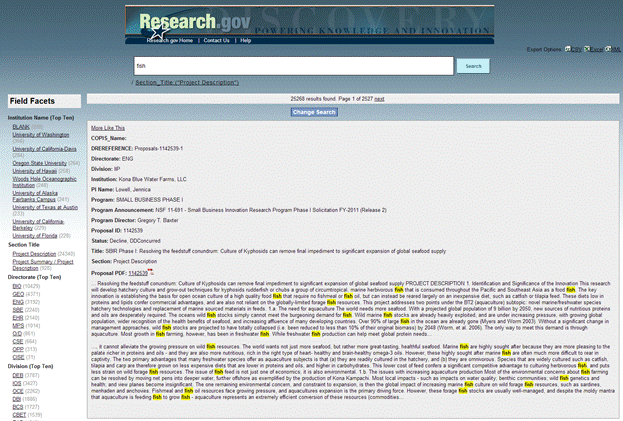
Figure 2- Document Search Results
You can also view proposals using the view “More Like This” feature. Click on the “More Like This” link above each proposal to view five similar proposals. A “score” is also displayed indicating the degree of similarity for each similar result. You can access the PDF file for each proposal by clicking on the Proposal ID link and can also view other pertinent information about the similar items such as Institution, Program, Title and Section.
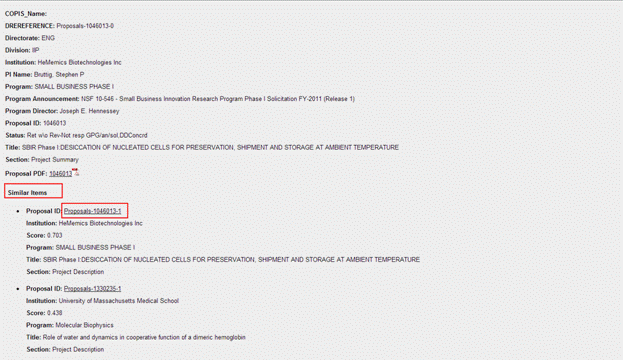
Figure
3- “More Like This” Results